Want to start selling online, but half the tutorials out there still show screens from an older WooCommerce? Then this one is for you. Let me show you how to set up a WooCommerce store the way it actually looks today.
Little background first. I have been on WordPress since 2014, and it is still where I build my online stores, a few of which run on WooCommerce to this day. Hosted builders have become popular, sure, but in 2026 WordPress is still one of the leading platforms for eCommerce, and WooCommerce's own page on WordPress.org shows 7+ million active installations.
For this guide I made a brand new test store, gave it a silly name, Blue Mug Co., and clicked through every single screen on WooCommerce 11.2.1 with WordPress 7.1.3. This was in October 2026, so the screenshots below are fresh.
Short version: buy a domain and hosting, put WordPress on it, install the free WooCommerce plugin and run its setup wizard. Then add products, hook up a payment method, sort out shipping and tax, buy one thing from yourself as a test, and flip the store from Coming soon to Live.
The Shutter-Up Method, in Short
In India, shopkeepers say "shutter up" when the shop opens for the day. I borrowed that for new stores. Before your shutter goes up, four things should be ready, and the 12 steps in this guide fall into them like this:
- Ground (steps 1 to 3): domain, hosting, WordPress and the plugin itself.
- Stock (steps 4 to 6): the wizard, a theme, and the things you are going to sell.
- Till (steps 7 to 9): payments, shipping and tax, basically everything to do with money and delivery.
- Doors (steps 10 to 12): policies, safety, and one test order before you open.
Before You Start: Keep These Ready
WooCommerce itself doesn't take long. Collecting your business details does. You will want your domain and hosting sorted, your product names and prices, a few lines about each product, the stock count and decent photos. Get your Stripe or PayPal account opened as well (or just your bank details, if direct transfer is enough for you). Think about where you'll deliver and what you'll charge for it, even roughly. Write your refund, privacy and terms policies. And know your tax position, whether that is GST here in India or sales tax in the US.
Honestly, on my own stores, photos and policies always took longer than the WooCommerce settings. Start with those.
Phase 1: Ground
Step 1: Domain and Hosting (Don't Go Too Cheap)
Your domain is what people will type, so short and easy to spell wins, ideally close to your brand. Our tips on choosing a good domain name were written with blogs in mind, but they hold for shops as well.
Hosting deserves more thought. A shop works its server much harder than a blog does, mostly on the cart and checkout pages. The version I tested asks for WordPress 7.0 or newer and PHP 7.4 at the very least, and its WordPress.org page recommends PHP 8.0 or above. That means your host should give free SSL, daily backups and a fairly new PHP version, nothing less. Can't decide? Our Hostinger review and SiteGround review might settle it. A cheap shared plan is okay while you build and play around, but once real orders start coming, upgrade before a slow checkout starts eating your sales.
Step 2: WordPress, Plus Two Settings Nobody Tells You About
Most hosts install WordPress in one click. If yours doesn't, our guide on how to install WordPress walks you through it. Before WooCommerce goes in, I always fix two settings:
- First, the timezone, along with the site title and admin email, under Settings → General. Your order times and scheduled sales run on this clock.
- Then the links, under Settings → Permalinks. Pick Post name and save, and your products get addresses like
yourstore.com/product/blue-mug/instead of a number nobody remembers.
Step 3: Install WooCommerce (Two Clicks)
WooCommerce is free of cost. New to it? Have a quick read of what WooCommerce is and come back.
- In the sidebar, open Plugins → Add Plugin and type "WooCommerce" in the search box.
- Hit Install Now on the one made by Automattic, wait a few seconds, and click Activate.
The moment I activated it, WooCommerce went ahead and made Shop, Cart, Checkout and My account pages on its own. It also left a draft Refund and Returns Policy page for me, right next to the draft Privacy Policy page that WordPress had already created.
Phase 2: Stock
Step 4: The Setup Wizard
As soon as I clicked Activate, I landed on a big "Welcome to Woo!" screen, with a Set up my store button in the middle. The wizard behind it is short:
- First it wants to know where you stand. "I'm just starting my business", "I'm already selling" or "I'm setting up a store for a client".
- Then come the store details: name, industry, location and email. Blue Mug Co. went in here.
- Last, a screen of free extras. PayPal Payments, Jetpack, MailPoet, Google for WooCommerce and a couple of ad channels, all offered in one go.
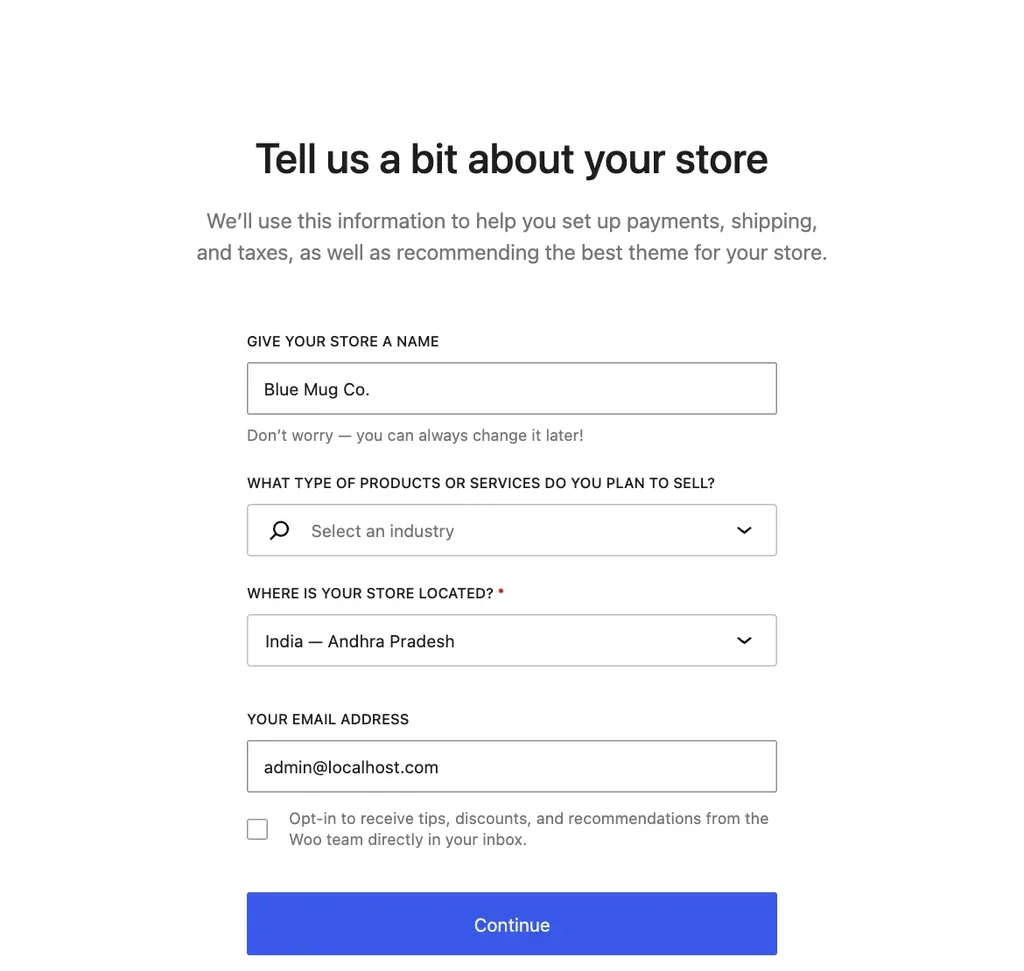
Don't rush the location field. It decides your currency and which payment options you get later. When I picked India, my prices changed to rupees and the payment list changed along with it.
On that extras screen, all six boxes came pre-ticked. Untick whatever you don't need today, since each one is one more plugin to keep updated. They can always be added later, or you can just click Skip this step.
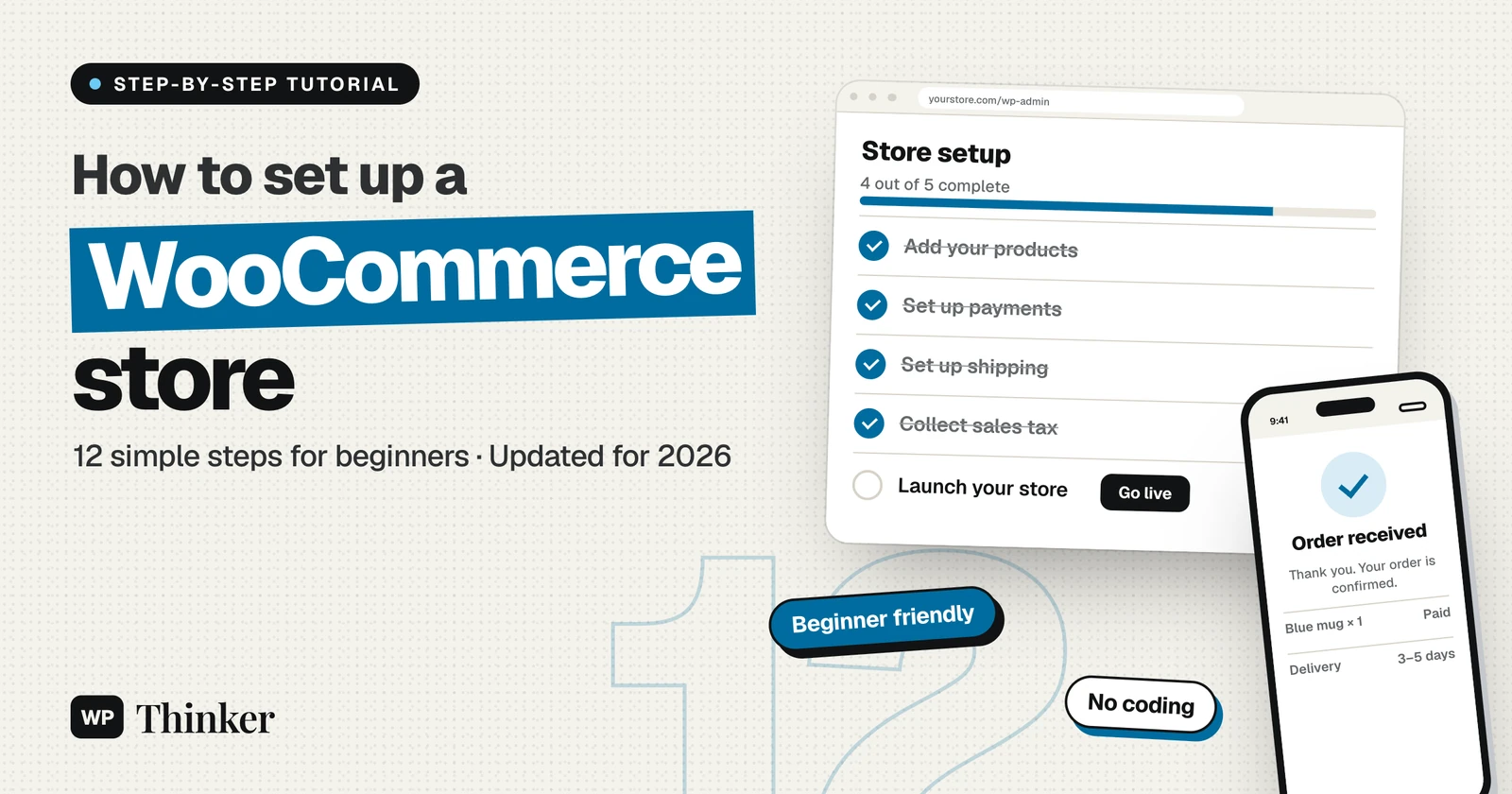
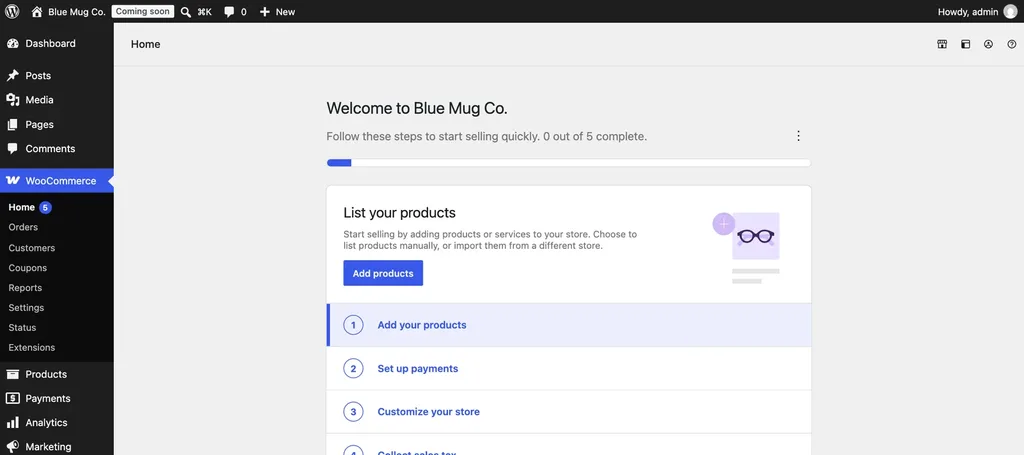
Once the wizard finished, my Home screen said "0 out of 5 complete" next to a little checklist: Add your products, Set up payments, Customize your store, Collect sales tax and Launch your store. I am following the same order below, plus a few things that checklist quietly skips.
Step 5: A Theme That Suits a Shop
How your shop, product, cart and checkout pages look is up to the theme. Plenty of modern themes work with WooCommerce out of the box, though a shop-focused one saves a lot of fiddling later.
You add it from Appearance → Themes. With a block theme, there is a bonus: under Appearance → Editor you can rework store templates, like the single product page, without touching code. Need ideas? Look at our lists of the best WordPress themes for business and the best themes for dropshipping.
One thing from experience. Stay away from heavy multipurpose themes that come with ten bundled plugins. A light theme is easier to update and opens faster on phones, and a lot of your buyers will be on phones.
Step 6: Your First Products
Now the fun part. Head to Products → Add new product. Type a name, write a description in your own words, then keep scrolling till you reach the Product data box. Honestly, you'll live in that box.
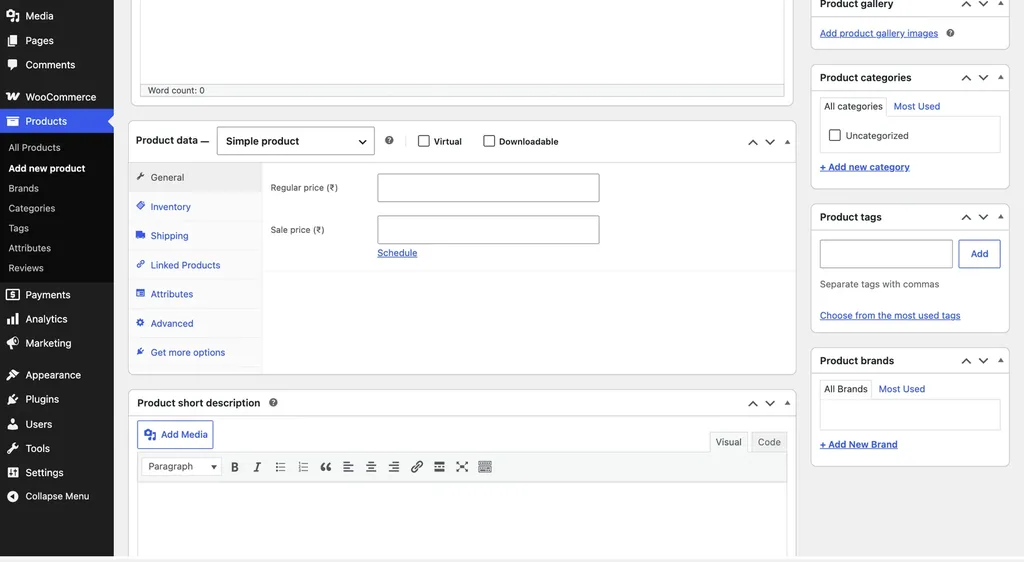
The dropdown at its top sets the product type: Simple, Grouped, External/Affiliate or Variable. Beside it are the Virtual tick (services) and the Downloadable tick (digital files). Down the left side run the tabs. General holds the regular price and an optional sale price, and you can even schedule the sale. Inventory is for the SKU and stock. Shipping takes the weight, size and shipping class. Linked Products is where upsells and cross-sells go. And Attributes is for size, color and the like, which a variable product turns into variations.
Over on the right sit the product image, gallery, categories, tags and brand. Yes, Brands is built into WooCommerce now, so you don't need a separate plugin for it.
Two habits I follow on every store. Same image ratio for every product (square works nicely), so the shop grid looks neat. And my own descriptions, always. Copy the manufacturer's text and your page looks like a hundred others on Google. Got a big catalog? The Import button on Products → All Products takes a CSV file and saves you the typing.
Phase 3: Till
Step 7: Payments, Which Depend on Your Country
Payment options live under WooCommerce → Settings → Payments, and what you find there depends on your business location. With my test store set to the US, the list had WooPayments, PayPal Payments and offline payments. The moment I switched it to India, Stripe showed up instead of WooPayments, next to PayPal Payments and offline payments, with a few more tucked inside a dropdown.
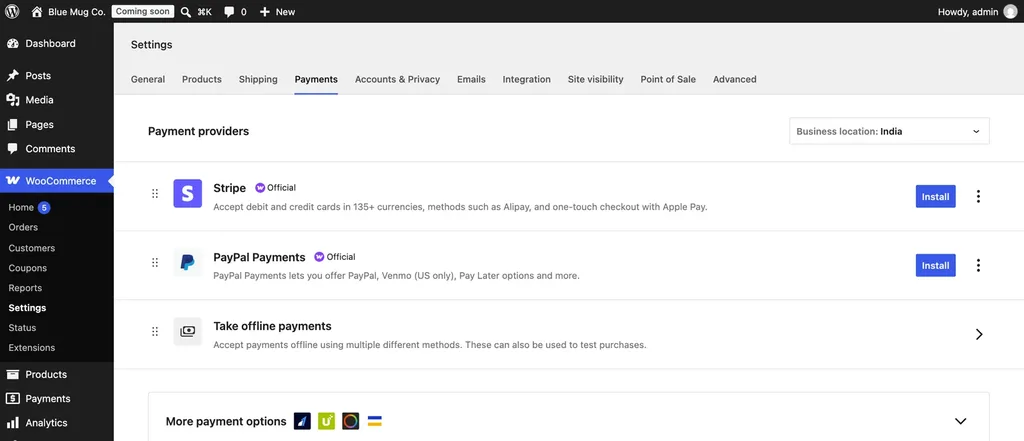
Click Install next to the one you want and connect your account. Under Take offline payments you also get direct bank transfer, check payments and cash on delivery. Here in India, COD still makes first-time buyers comfortable.
Whatever you pick, keep it in test or sandbox mode for now. More choices are in our list of payment plugins for WordPress.
Step 8: Shipping Zones
Shipping is one tab over, at WooCommerce → Settings → Shipping. Across the top you get four links: Shipping zones, Shipping settings, Classes and Local pickup.
A shipping zone is nothing but a group of places with its own rates. Click Add zone, name it, choose the regions, then hit Add shipping method and pick flat rate or free shipping.
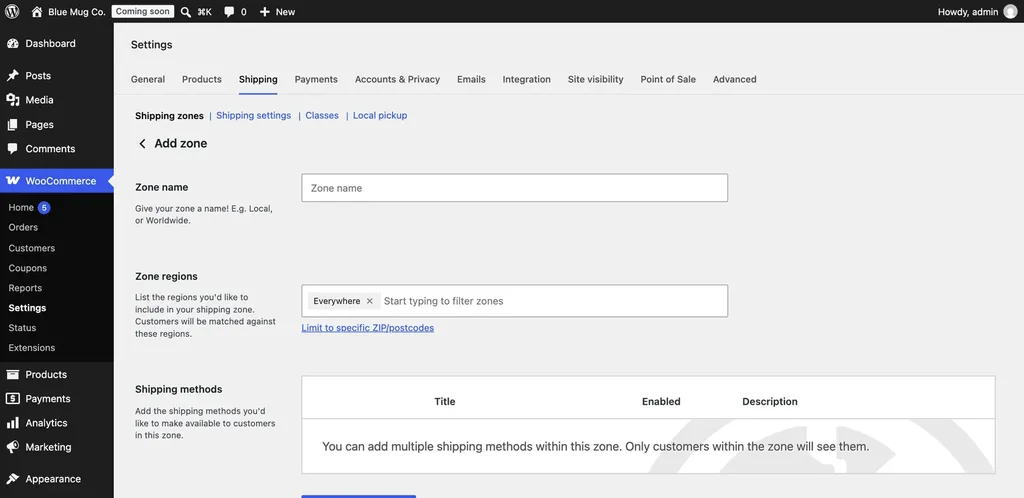
A simple setup I like for a small Indian store goes like this. One zone for your own city, limited by PIN codes, with free shipping. Another zone for the rest of India with a flat rate. Each shopper matches only one zone, based on their address, so don't let your zones overlap. Selling only digital stuff? Skip this step.
Step 9: Tax
Tax stays switched off until you tick Enable taxes, which is in the General tab of the WooCommerce settings. Save, and a fresh Tax tab appears. That is where you tell WooCommerce whether your prices already include tax, and where the rates for each country or state go.
WooCommerce will do the maths at checkout, but getting the rates right is on you. Have a word with your accountant about GST or sales tax before you launch.
Phase 4: Doors
Step 10: Policies, Guest Checkout and Order Emails
Remember those two draft pages, Refund and Returns Policy and Privacy Policy? Fill them in properly and publish them. Write a Terms and Conditions page as well, then link it up under WooCommerce → Settings → Advanced → Page setup so it appears at checkout.
The Accounts & Privacy tab is where guest checkout lives. My advice is to allow it, because making everybody create an account is a common reason carts get left behind.
Then the Emails tab. Put in a sender name and address, and open each notification (New order, Processing order and the rest) to see what your customers will get. There's a note right on that screen asking you to connect your email address to your domain. Do it, and set up SMTP properly, or your order emails may land in spam.
Step 11: Lock It Down and Speed It Up
A shop keeps customer details and takes money, so none of this is optional. Every page should load on HTTPS (here is how to force SSL in WordPress). Back up every day, because orders come every day, and the best backup plugins for WordPress will happily do it for you. A security plugin and strong admin passwords are a must. For speed, a caching plugin makes a big difference, as long as it never caches Cart, Checkout or My account. Updates for WordPress, WooCommerce or the theme? Backup first. Update after.
Step 12: Buy From Yourself, Then Go Live
New stores now start in Coming soon mode. My admin bar had a little "Coming soon" badge the whole time, and visitors only see a coming soon message where your shop pages should be.
So before the shutter goes up, I place one order myself:
- Under WooCommerce → Settings → Site visibility, I switch on Share your site with a private link.
- That link goes into a private window on my phone, and a product goes into the cart.
- Checkout happens with the gateway's test mode, or cash on delivery.
- Both emails should land, the customer one and the admin one. I check.
- Last, the test order gets cancelled or refunded from WooCommerce → Orders.
If all of that works, back to Site visibility, choose Live, hit Save changes. Shutter up. Your WooCommerce store is now officially open.
How Much Does It Cost to Set Up a WooCommerce Store?
Zero for the plugin. The money goes to the domain, hosting, maybe a premium theme, any paid extensions, and the gateway's small cut of each sale. A simple shop can run without a single paid extension. I have broken these costs down properly in our guide on what WooCommerce is.
How Long Does It Take to Set Up a WooCommerce Store?
If the products, photos and policies are already sitting ready, the WooCommerce side is a few hours' work, one evening more or less. Content is what drags, not the plugin.
Common Mistakes Beginners Make
- Skipping the test order. A broken payment setup hurts the most, because you only find out when a real customer gives up and leaves.
- Keeping every plugin from the wizard. Install extras when you actually need them.
- Launching without policies. People look for return and refund terms before they pay.
- Uneven photos. Mixed sizes and backgrounds make even good products look cheap.
- Never checking on mobile. Open every store page on your phone before launch.
WooCommerce Store FAQs
Can I set up a WooCommerce store for free?
Partly. Building and testing on a local install won't cost you a rupee, since the plugin is free. Selling to real customers is another matter, because then you need a domain and hosting.
Do I need coding skills to set up a WooCommerce store?
Nope. I did everything in this guide from the WordPress dashboard. Code comes in only if you want something really custom, like a special checkout field.
Can I sell digital products with WooCommerce?
Sure. Tick Virtual and Downloadable on the product, upload your file, and buyers get a download link right after paying.
Is WordPress still good for eCommerce in 2026?
I would say yes, and I am not saying it lightly. Twelve years on WordPress, and my own stores still run on it. My data stays with me, I'm not locked into anyone's platform, and WooCommerce still gets updates regularly.
Can I use WooCommerce on WordPress.com?
Only if your WordPress.com plan allows plugins. With self-hosted WordPress and your own hosting, you get full control.
Summing Up
That's all for now. Setting up a WooCommerce store is pretty simple once your products and policies are ready. Get the ground, the stock, the till and the doors in place, test once, and then put the shutter up. More products and features can always come later.
If you get stuck at any step, do let us know in the comment box below. I will try my best to help.