Planning to sell something online from your WordPress site? Then sooner or later you will search what is WooCommerce, and you will see the word "free" everywhere. Is the WooCommerce free plugin really free? Mostly yes, but there is a small catch, and we will come to that.
Coming to the matter, it is a plugin. Just a plugin. You install it like you install any contact form or SEO plugin. Next minute, your plain website has product pages, a cart, a checkout, payment options, shipping rules and an orders screen. Same dashboard where you write your posts.
I started working with WordPress back in 2014. Many of my own eCommerce websites still run on WooCommerce, so most of what I write here comes from using it, not from reading about it. Still, plugins change a lot in a year or two, so before writing this I set up a fresh test site with WooCommerce 11.2.1 on WordPress 7.1.3 and checked every menu again. Good thing I did, because a few screens are not where the older tutorials say they are.
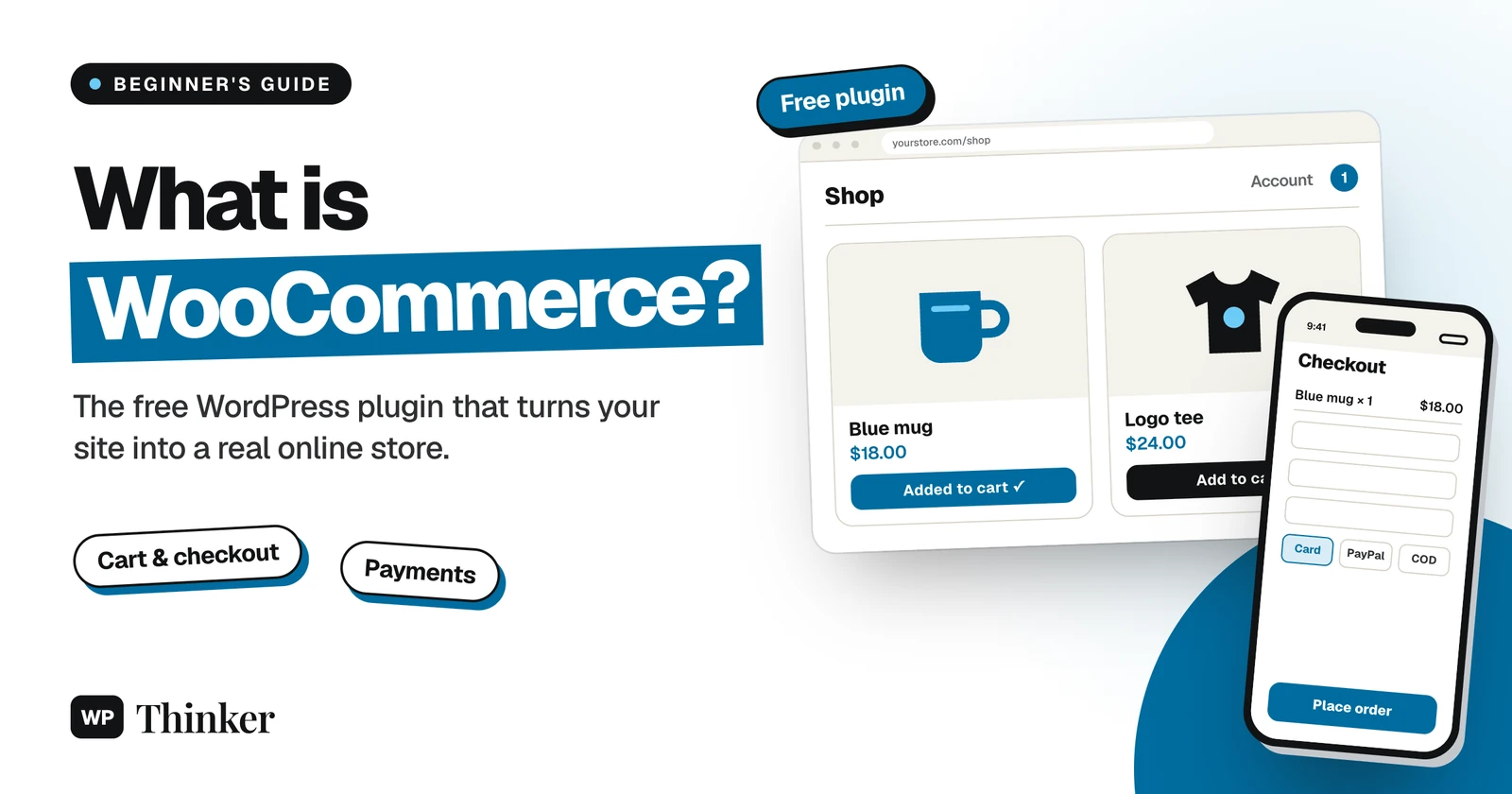
WooCommerce is a free WordPress plugin from Automattic that adds a full online store to your site. The plugin itself costs nothing and takes no commission. Hosting, a domain, payment gateway fees and any premium extensions are the parts you pay for.
What Is WooCommerce, Exactly?
Let me put it in a simple way. Your WordPress site is a shop with a nice glass front. People can come and see, but there is no billing counter inside, no stock room and nobody to take the money. WooCommerce puts all of that inside.
A bit of history, because people ask me this. WooCommerce came out in 2011 from a theme shop called WooThemes, and in 2015 Automattic bought the whole thing. Yes, the same Automattic that runs WordPress.com. Today the WordPress.org page of WooCommerce shows 7+ million active installations. Funny thing, while I was testing, the plugin's own setup screen popped up a "fun fact" saying Woo powers almost 4 million stores worldwide. Both numbers can be true at the same time. Not every install is a shop that sells. My test site, for example, sold nothing to nobody.
It is also open source, under the GPL license. In simple words, the copy sitting on your server is yours. Use it, modify it, build your own thing on top of it. Nobody is going to send you a bill for the core plugin one day.
How Does WooCommerce Work Inside WordPress?
You install it, you activate it, and WordPress grows a few new menus. That's pretty much it.
On my test site, I got a WooCommerce menu with Home, Orders, Customers, Coupons, Reports, Settings, Status and Extensions inside it. Then a Products menu. Then Payments, Analytics and Marketing as separate items. Without asking anything, it also made Shop, Cart, Checkout and My account pages, and kept a Refund and Returns Policy page ready as a draft for me to fill.
Now, what happens when somebody actually buys from you? Let's take a coffee mug.
- They open your Shop page, like the mug, and click Add to cart.
- On the checkout page they give their address and pay with Stripe, PayPal or whatever gateway you have set up.
- WooCommerce saves the order, takes one mug off your stock count and sends an email to you and to them.
- Then it's your turn: pack it, hand it to the courier, and mark it Completed in WooCommerce → Orders.
And all this data sits in your own WordPress database. Products, customers, orders, everything. With hosted builders, your shop sits on their servers and follows their rules. With WooCommerce, it is your house.
What Can You Sell with WooCommerce?
Honestly, almost anything that is legal to sell online. Clothes, books, gadgets, eBooks, music, templates, consulting calls, even affiliate products that you send to Amazon. Subscriptions, bookings and memberships also work, but for those you need an extension.
When you add a product, WooCommerce asks you to pick a type. Here is a quick table so you don't get confused:
| Product type | When to pick it | Example |
|---|---|---|
| Simple | One thing, one price | A coffee mug |
| Variable | Same thing in sizes or colors, each with its own price and stock | A T-shirt in S, M and L |
| Grouped | A few simple products shown together | A skincare kit |
| External/Affiliate | Shown on your site, sold on someone else's | An Amazon pick |
There are also two small checkboxes right next to that dropdown, Virtual and Downloadable. Virtual means nothing gets shipped, like a consultation. Downloadable means the buyer gets a file link after paying. If you sell an eBook, tick both. The Shipping tab just vanishes, which I like, because there is nothing to fill there anyway.
Key Features of the Free WooCommerce Plugin
The free version already does the boring work that every shop needs. You get stock tracking, and it can mail you when something is running low. Coupons, as a fixed amount or a percentage or free shipping. Shipping zones with flat rate, free shipping and local pickup. Tax rates for each country or state. A My account area where customers see their old orders. Order emails for every stage, from New order till Refunded order. And reports under Analytics, so you know how much you sold.
Two things were new for me in this version. Brands now comes inside WooCommerce itself, earlier it was a separate extension. And a fresh store now starts in "Coming soon" mode, so you can build everything quietly and open the shop only when you feel ready.
For card payments, you have to add a payment provider, and the list you see depends on your country. I tried both ways. With a US address, my test store offered WooPayments, PayPal Payments and offline payments. When I changed it to India, WooPayments was gone and Stripe and PayPal Payments came instead, with cash on delivery and bank transfer under offline payments. For more options, check our list of payment plugins for WordPress.
If you are a developer, there are hooks and a REST API, which is the reason you will find a ton of themes and extensions made for WooCommerce.
Is WooCommerce Free? The Counter-and-Rent Rule
Yes, WooCommerce is free. Free to download from WordPress.org, free to use, and no commission on your sales. But the shop around it is not free, and this is the catch I mentioned at the start.
I call it the Counter-and-Rent rule. WooCommerce gives you the billing counter free of cost. You still pay rent for the shop where that counter stands, and the bank still keeps a little from every payment.
What the WooCommerce Free Version Includes
Everything I listed above. Products, cart, checkout, shipping, tax, coupons, accounts, emails, reports, offline payments, the whole lot. No trial, no 30-day timer that suddenly locks you out. A small shop with simple products can happily run on the free plugin plus one payment gateway.
What a WooCommerce Store Really Costs
| Cost | Free or paid? | What to know |
|---|---|---|
| WooCommerce plugin | Free | No monthly fee, no product limit, no sales commission |
| Domain name | Paid | Renewed every year |
| Hosting | Paid | Decides how fast your checkout feels |
| SSL certificate | Usually free | Most hosts give one |
| Theme | Free or paid | A free theme is fine in the beginning |
| Extensions | Free or paid | Subscriptions and bookings are usually yearly licenses |
| Payment fees | Paid per sale | Taken by Stripe, PayPal or your gateway, not by WooCommerce |
If you ask me where not to save money, it is hosting. Our Hostinger review and SiteGround review can help you choose one, and if the little padlock in the browser is new to you, read what an SSL certificate is.
Buy an extension only when a real customer asks for that feature. If you buy things "just in case", the yearly renewals slowly eat your profit.
WooCommerce Pros and Cons
Like any other platform, WooCommerce has its good and bad sides. Better you hear the bad ones from me now than find them after launch.
What I Like
- The core plugin is free and open source.
- Your store, your data and your customer list belong to you.
- It works with most WordPress themes and plugins.
- Blog and shop on one domain, which is good for SEO.
- Stuck somewhere? Someone in the community has already solved it.
What Can Go Wrong
- Hosting, updates, backups and security, all of it is your headache.
- Paid extensions can quietly push your budget up.
- Too many plugins on cheap hosting, and the store becomes slow like anything.
- New to WordPress itself? Then give yourself a few days to learn the basics first.
WooCommerce vs Shopify: Which One Fits You?
Sooner or later, this question comes up for every beginner. Both are good. They just think in opposite directions.
| WooCommerce | Shopify | |
|---|---|---|
| Software cost | Free plugin | Monthly plan |
| Hosting | You pick it and pay for it | Included |
| Updates and security | Your job | Shopify's job |
| Where your data lives | Your own database | Shopify's platform |
| Flexibility | Almost unlimited | Within Shopify's rules and apps |
| Best for | WordPress users who want control | Sellers who want zero maintenance |
Personally, I keep coming back to WooCommerce. My articles and my shop stay together on one site, and if I don't like my host, I can shift any day. But if servers and updates scare you, a hosted builder will feel lighter, no shame in that. You can also see other options in our list of the best WordPress plugins for eCommerce.
How to Set Up WooCommerce: The Short Version
Setting it up is pretty simple. First make sure your WordPress site is on decent hosting with SSL turned on. If you don't have a site yet, our guide on how to install WordPress covers that. Then:
- First, go to Plugins → Add Plugin, search for "WooCommerce", click Install Now and then Activate.
- Now, go through the setup wizard. It asks what describes you best, then your store name, industry and location. On the free features screen, everything is ticked already, so untick what you don't need.
- Next, connect a payment provider from WooCommerce → Settings → Payments.
- Then add a shipping zone from WooCommerce → Settings → Shipping.
- Add your first product from Products → Add new product.
- Finally, place one test order, and then change Site visibility from Coming soon to Live.
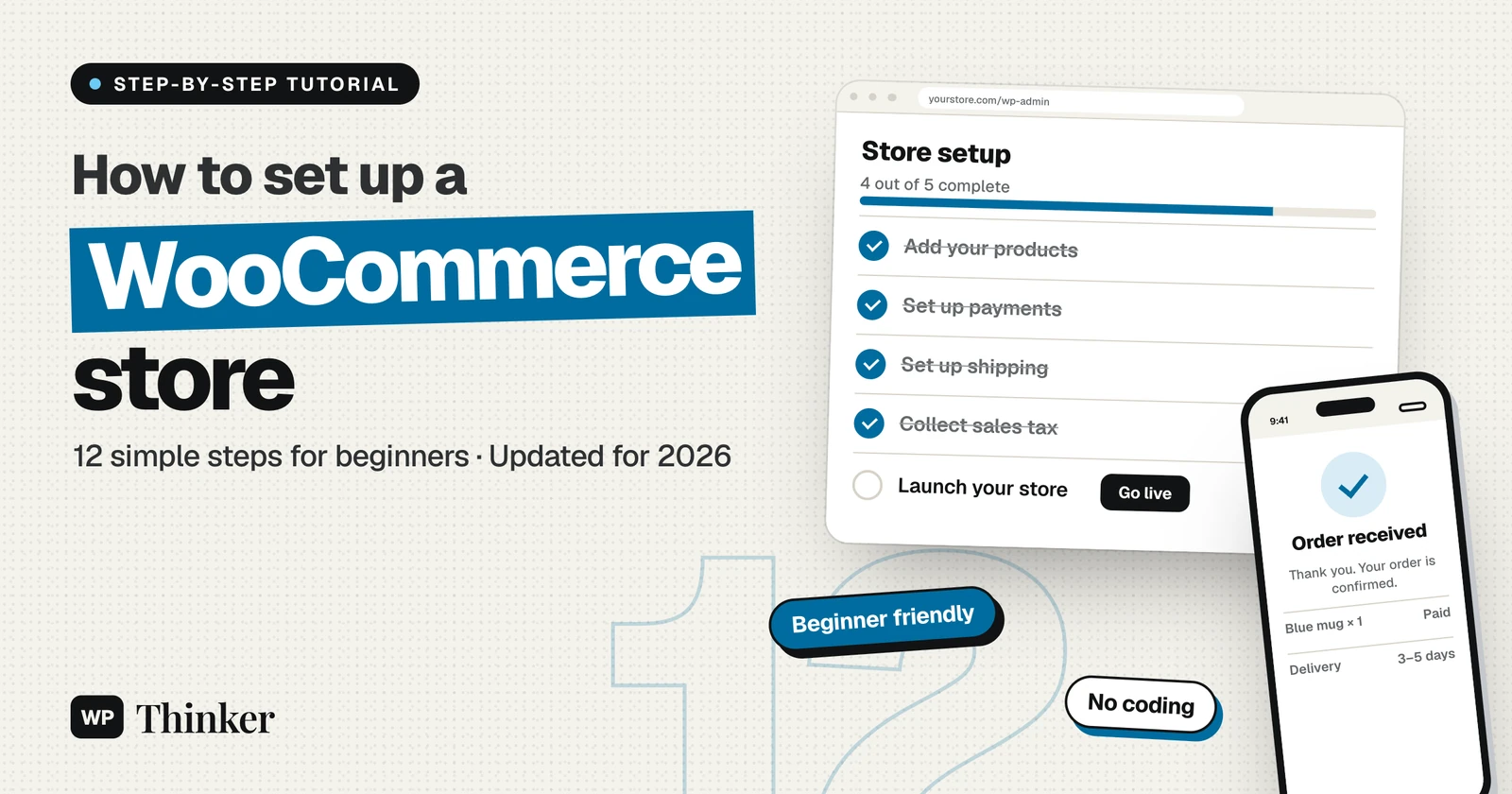
The full step-by-step, with screenshots from my test store, is in our tutorial on how to set up a WooCommerce store.
Before you update WooCommerce or any of its extensions, take a full backup. Updates sometimes change the database, and if something goes wrong, restoring that backup is the quickest fix.
Keeping a WooCommerce Store Fast and Safe
A shop has more moving parts than a blog, and it keeps people's addresses and phone numbers, so I do the same basic things before any of my stores sells its first product. Hosting that can grow with you comes first (have a look at the different types of web hosting). Then force SSL on every page, not only on checkout. Daily backups, because orders come in daily, and the best backup plugins can do it automatically. A good security plugin. And a caching plugin that leaves Cart, Checkout and My account pages alone.
WooCommerce FAQs
Is WooCommerce free forever?
Yes. It's GPL-licensed open source, so the core plugin stays free. You pay only for optional extensions, themes and services.
Does WooCommerce take a commission on sales?
No, not a single rupee or dollar. Only your payment gateway charges its transaction fee.
Do I need WordPress to use WooCommerce?
Yes. No WordPress, no WooCommerce. Most people run it on self-hosted WordPress (the WordPress.org version). If you are on WordPress.com, your plan has to allow plugins.
Can I keep my current theme?
Mostly yes. But a theme made for shops will make your product pages look much better. Have a look at our picks of the best WordPress themes for business and the best themes for dropshipping.
Is WooCommerce still worth it in 2026?
For me, yes. More than ten years on WordPress, and it is still what I trust for my own stores. WooCommerce also keeps getting regular updates, so it is not going anywhere.
Summing Up
So, what is WooCommerce? Nothing but a free billing counter for the shop you already have. My advice: start with the free version, buy extensions only when your customers push you to, and never skip backups. Want to earn from your site in other ways too? Read our guide on how to make money with WordPress.
That's all for now. If you have any doubts about starting your WooCommerce store, do let us know in the comment box below.