Black Friday is the busiest few days of the year for most online stores, and this year it falls on November 27, with Small Business Saturday on November 28 and Cyber Monday on November 30. If you sell with WooCommerce and want the weekend to run smoothly, this WooCommerce Black Friday checklist will help you get your store ready in time. We tested every setting below on a fresh WooCommerce 11.3 store before writing it, so you know exactly where to click.
A sale weekend is not the time to discover that a coupon doesn't work or that order emails are going to spam. Let us have a look at the ten things we would do this week, in the order we would do them.
Your Black Friday Week at a Glance
| When | What to do |
|---|---|
| By Monday, Nov 23 | Back up, update WordPress, WooCommerce and plugins |
| By Tuesday, Nov 24 | Schedule sale prices and create coupons |
| By Wednesday, Nov 25 | Place test orders, check emails, speed and stock |
| Thursday, Nov 26 | Stop making changes; only fix real problems |
| Nov 27 to 30 | Watch orders, payments and stock each day |
1. Take a Full Backup First
Before you change anything, take a complete backup of your files and database, and keep one copy away from your hosting account. If an update or a new plugin breaks checkout on Thursday night, a recent backup is the fastest way back.
The free UpdraftPlus plugin is used on more than 4 million sites and can send backups to cloud storage such as Google Drive. Our guide on how to back up and restore WordPress walks you through it step by step.
2. Update WordPress, WooCommerce and Your Plugins
This week has several updates you should not skip:
- WordPress 7.1.5 fixed 20 security issues on November 18. Our WordPress 7.1.5 guide explains them.
- WooCommerce 11.3.1 came out on November 19. Its changelog includes a fix to how per-user coupon limits are counted at checkout, which matters for Black Friday codes.
- PHP received security releases on November 19. Ask your host to confirm your server has them.
If you are still on WooCommerce 11.2 or older, read our WooCommerce 11.3 guide first, because 11.3 includes a database update. Update on a staging site if you can, then update the live store at a quiet hour.
3. Schedule Your Sale Prices
You don't need to stay up at midnight to start a sale. WooCommerce can switch prices on and off for you.
- First, open Products and edit the product you want to discount.
- Next, in the Product data box on the General tab, enter the Sale price.
- Now click Schedule next to the sale price and pick the start and end dates.
- Finally, click Update.
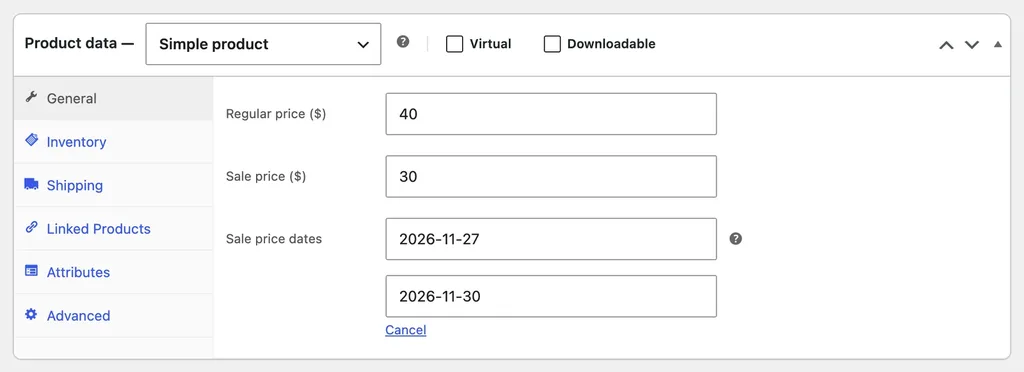
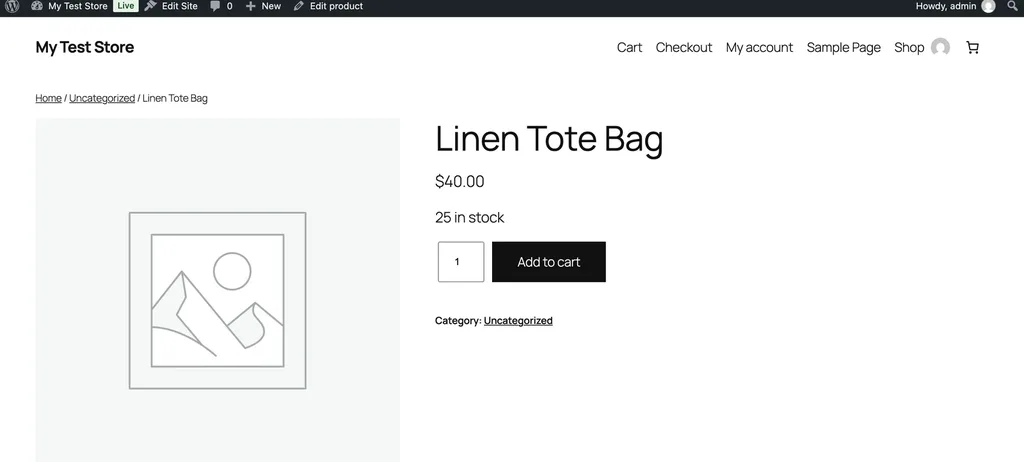
In our test, the product page still showed the regular $40.00 price on November 22, and the store's product data reported the item as not on sale yet, so the sale stays hidden until its start date. It's also worth checking that Settings → General → Timezone matches your business, since your store's dates and times are based on it.
4. Create Coupons That Can't Be Abused
A coupon code shared on a deals forum can empty your stock or your margin in hours. WooCommerce has the controls to prevent that, and our full WooCommerce coupons guide covers every option. For Black Friday, these four settings matter most.
- Expiry date: according to the WooCommerce coupon documentation, a coupon stops working on the expiry date. For a code that should work all day on Cyber Monday, November 30, set the expiry to December 1.
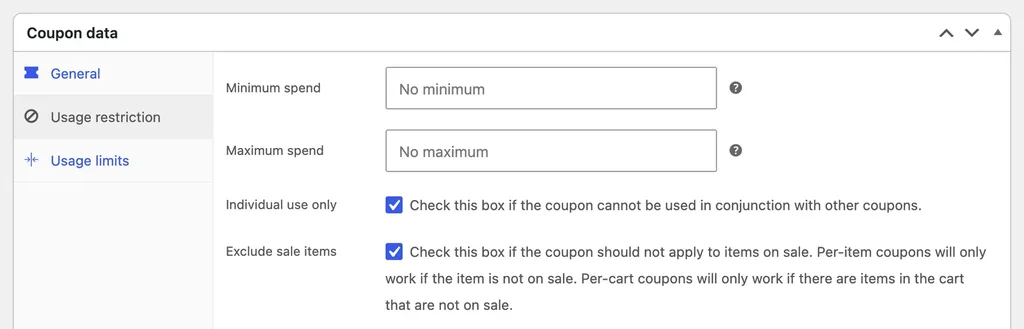
- Exclude sale items: tick this under Usage restriction so customers can't add 20% off to products that are already discounted.
- Individual use only: stops shoppers from stacking several codes in one order.
- Usage limits: under Usage limits, set a total limit per coupon and a limit of one per user.
The documentation also suggests a simple test that we recommend: add an eligible product to the cart and apply the code, then try a cart that shouldn't qualify and make sure the coupon is rejected.
5. Set Up Stock Alerts and Hold Stock
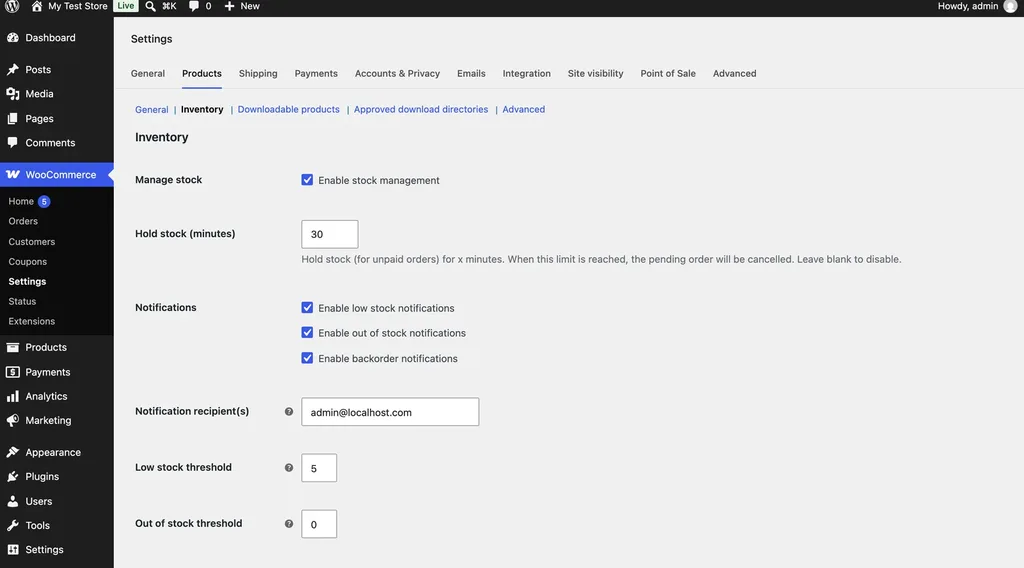
Overselling is one of the most common Black Friday problems. Go to WooCommerce → Settings → Products → Inventory and check these options:
- Manage stock: turn it on so WooCommerce counts every sale.
- Hold stock (minutes): WooCommerce keeps items for unpaid "Pending payment" orders for this long, then cancels them and releases the stock. We used 30 minutes on our test store.
- Low stock threshold: you get an email when stock falls to this number, so you can restock or end the offer early.
6. Place Real Test Orders
Every year, someone's checkout breaks because a payment plugin changed its settings. Place a test order with each payment method you offer, using your gateway's test mode or a small real payment you refund afterwards. Then check that the order appears in WooCommerce, the stock goes down and the payment shows in your payment provider's dashboard.
7. Make Sure Order Emails Arrive
If order confirmation emails land in spam, customers write to you instead of waiting. Send yourself a test order and check the inbox, the spam folder and the sender name. If emails are missing, the free WP Mail SMTP plugin, used on more than 4 million sites, sends them through a proper email service. Our guide to fixing WordPress emails has more help.
8. Check Caching and Speed
Caching keeps your store fast when traffic jumps, but it must never cache the pages that show a customer's own cart. The WooCommerce caching guide says the Cart, Checkout and My Account pages must stay uncached. It also notes that the free WP Super Cache plugin excludes those pages automatically.
After any change, open your store on your phone in a private window, add a product to the cart and go through to the payment step. Many Black Friday shoppers buy on their phones, so this is the test that matters most.
9. Lock Down Your Admin Accounts
A busy sales week is the worst time to deal with a hacked admin account. Remove old staff accounts, make sure every administrator uses a strong, unique password, and turn on two-factor login with a free plugin such as Two Factor. Our WordPress security checklist covers the rest.
10. Freeze Changes and Watch Each Day
From Thursday, November 26, stop installing plugins or changing your theme. During the sale, check these once or twice a day:
- Orders stuck in "Pending payment" or "Failed"
- Stock levels on your best sellers
- Coupon usage under Marketing → Coupons
- Payment methods in Analytics → Orders, which shows the payment method for each order in WooCommerce 11.3
WooCommerce Black Friday Checklist: FAQs
When should I schedule my Black Friday sale in WooCommerce?
Set it up a few days early, by Tuesday, November 24, and schedule it to start on November 27. That leaves time to test before the weekend.
Why is my WooCommerce coupon not working on its last day?
WooCommerce treats the expiry date as the first day the coupon no longer works. Set the expiry one day after your sale ends.
Do I need paid plugins to run a Black Friday sale?
No. WooCommerce already includes scheduled sale prices, coupons and stock alerts. The free plugins in this checklist cover backups, email delivery, caching and two-factor login.
Should I update WooCommerce right before Black Friday?
Update early in the week, test your checkout, and then stop. Don't update on Black Friday itself unless it's a security fix.
Wrapping Up
A good Black Friday is mostly decided before it starts. Back up and update early, schedule your prices, set coupon limits, place test orders and then leave the store alone while it sells. Work through this WooCommerce Black Friday checklist by Wednesday and you can spend the weekend on customers instead of fixes. Let us know in the comments if there is a step you would add.
Sources
We checked these sources for this WooCommerce Black Friday checklist on November 22, 2026:
- Coupon management, WooCommerce documentation
- Products and inventory settings, WooCommerce documentation
- Configuring caching plugins, WooCommerce documentation
- WooCommerce 11.3.1 and its changelog, WordPress.org
- WordPress 7.1.5 release, WordPress.org News