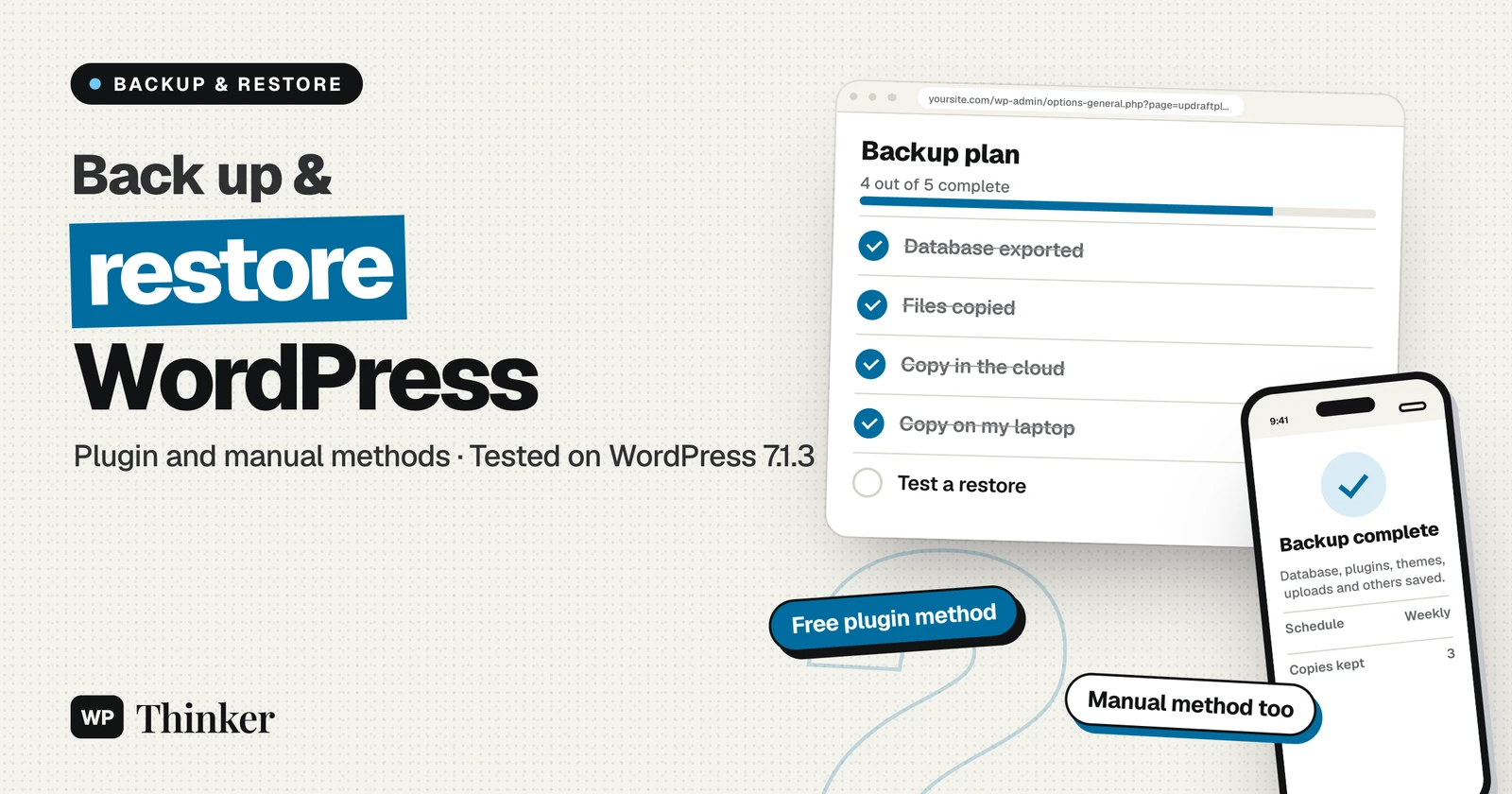
Nobody thinks about backups on a good day. You think about them at midnight, staring at a white screen after an update went wrong, and by then it's a little late, no? So let's do it properly while things are calm. So today, let's sort out how to back up and restore a WordPress site, once and for all. I'll show you the lazy way first, where a free plugin does the hard work for you. Then comes the old-school way with your own two hands, which saves the day when even the dashboard refuses to load.
A bit about me first. Quick intro before we start. I'm on WordPress since 2014, and even today several of my own online stores run on WordPress and WooCommerce. So backups, for me, are like brushing teeth: absolutely non-negotiable. What did I actually do for this one? On 28 October 2026 I made a fresh test site on WordPress 7.1.3, threw UpdraftPlus 1.26.14 on it, ran a proper backup, and then clicked through each restore screen one by one. I also went through WordPress's own backup documentation the same day. The screenshots below come from that test site.
Short version? Every proper backup has two halves, the database (posts, pages, settings) and the files (themes, plugins, uploads, wp-config.php). Lazy route, which I'd suggest for most of you: free UpdraftPlus, one click on Backup Now, a copy sent off to Google Drive or Dropbox, and a restore button waiting for the bad day. Locked out of the dashboard? Then it's phpMyAdmin for the database and SFTP for the files. And while restoring by hand, remember the order. Files first, database after.
What a WordPress Backup Really Contains
This is where most people slip up, trust me. A WordPress site is nothing but two things stuck together. Lose either one and you don't really have your site back.
- The database: all your posts, pages, comments, users and settings. Funny thing, it doesn't even live in your WordPress folder; it sits in MySQL or MariaDB.
- The files: core WordPress, themes, plugins, that big uploads folder full of images, and two small but very important files,
wp-config.phpand.htaccess.
WordPress's own backup guide is very clear on this. Downloading your WordPress folder does not back up the database, because the database sits in a separate system. So a "backup" with only files is half a backup. And a database dump without your uploads folder? You'd get your posts back with every image broken.
One more trap. Tools, then Export, is not a backup either. According to WordPress's documentation on the Export screen, that XML file holds your posts, pages, comments, custom fields, categories, tags and users. Your themes, plugins, settings and the actual image files aren't in it. Handy for moving content around, sure, but completely useless when the whole site goes down.
The Photocopy Rule: How Often, How Many, and Where
Ever noticed how we treat important papers at home? Nobody keeps only the original passport or property papers. There's a photocopy in the cupboard, a scan in the email, and maybe one more set with a family member in another city. If the house floods, the papers survive somewhere else. I call this the Photocopy Rule, and backups work exactly the same way.
WordPress's backup guide basically agrees. It suggests keeping at least 3 to 5 recent backups in different places: one on your hosting server, one in cloud storage like Google Drive or Dropbox, and one downloaded to your own computer. As for timing, here's what it recommends:
- Weekly backups for smaller sites that don't change much.
- Daily backups for busy sites with lots of new posts, orders or comments.
- One extra backup before every WordPress, theme or plugin update.
And one thing people skip: test it. The same guide says to back up those automatic backups with a manual one once in a while, just to make sure the process is really working. A backup you have never restored is only a hope, believe me.
Method 1: Back Up and Restore a WordPress Site With UpdraftPlus
Most of you should just use a plugin, honestly. My pick for this test was UpdraftPlus, simply because its free version already covers full backups, schedules, remote storage and restores. When I looked it up on WordPress.org, it had 4+ million active installs, a 96% rating from over 8,700 reviews, and an update from just two days earlier. If you'd like to compare it with other tools first, see my list of the best backup plugins for WordPress.
Step 1: Install It and Let the Setup Wizard Pick a Schedule
Install it like any other plugin from Plugins, then Add Plugin. The first time I opened Settings, then UpdraftPlus Backups, a "Welcome to UpdraftPlus!" setup wizard popped up with six short steps. First question on step 1: how often should backups run on their own?
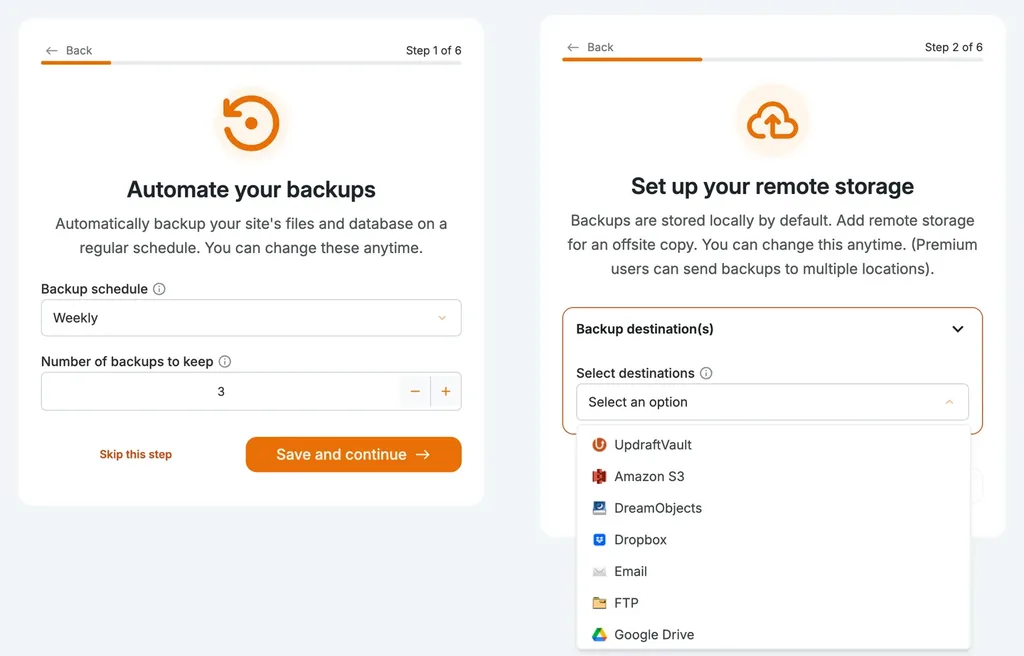
You get everything from Manual and every hour up to Daily, Weekly, Fortnightly and Monthly. Out of the box, it holds on to 2 backups. I picked Weekly and bumped the number to 3, following the Photocopy Rule. My test site had WordPress's scheduler switched off, though, and "Next scheduled backups" still read "Nothing currently scheduled" afterwards. On your site, glance at that box once. If it's empty, set the schedule again under the Settings tab.
Step 2: Send Your Backups Off the Server
Step 2 of the wizard is the important one. Left alone, UpdraftPlus keeps your backups on the very server your site runs on. Now think about it. If that server crashes or gets hacked, the backups sink right along with it, no? So pick a remote destination.
The free plugin offered Amazon S3, S3-compatible storage, DreamObjects, Dropbox, Email, FTP, Google Drive, OpenStack Swift and Rackspace Cloud Files, plus UpdraftVault, their own paid storage. OneDrive, Backblaze, Google Cloud, Azure, pCloud, SFTP and WebDAV were all marked Premium. Google Drive or Dropbox is the easy pick for most people. I skipped this step on my throwaway test site, but on a real site, please don't.
Step 3: Take Your First Backup
Wizard done, I hit the big blue Backup Now button. Up came a little box, and both important ticks were already on, database and files.
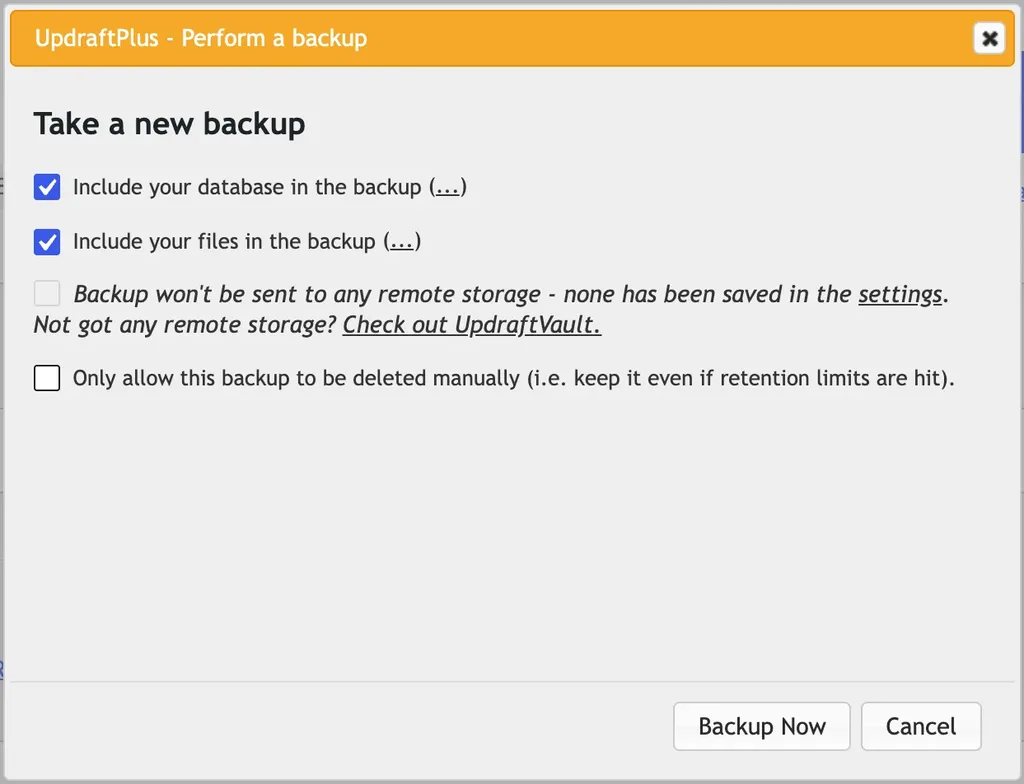
Keep both ticked. There's also an option to keep this backup until you delete it yourself, even when the retention limit is hit. I'd tick that one before a big update, so the safe copy doesn't get rotated out. On my small test site, the log soon said "The backup succeeded and is now complete", and the backup showed up under Existing backups.
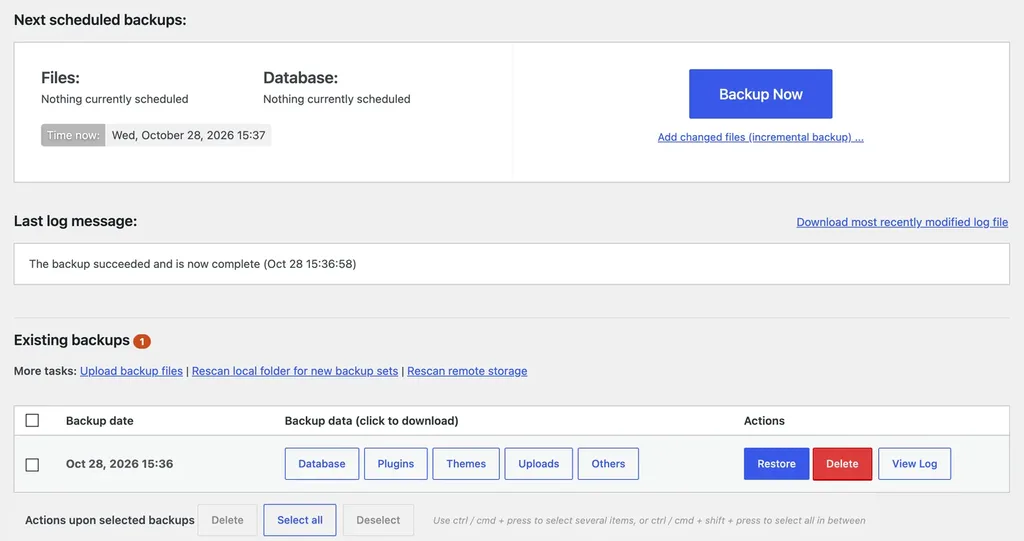
See how it's split into Database, Plugins, Themes, Uploads and Others? Each button downloads that piece, which is useful when you want a copy on your own computer too.
Step 4: Restore From UpdraftPlus
Coming to the restore. Next to each backup there's a Restore button. Clicking it opened a three-step restore screen with a clear warning: restoring will replace the site's themes, plugins, uploads, database and other content folders.
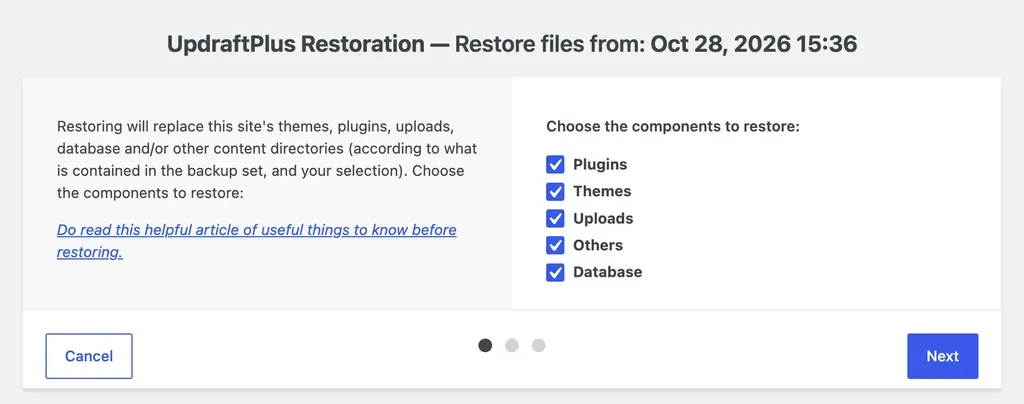
You choose what comes back. Broke the site with a plugin update? Restoring Plugins alone may do. Lost posts or settings? You'll need the Database. For a full rollback, tick all five. After Next, UpdraftPlus prepared the backup files and listed any warnings, and then I had to press Restore once more to actually begin. That second confirmation is a nice touch, honestly.
What if the whole site is gone? Install a fresh WordPress, add UpdraftPlus, and use the "Upload backup files" link above the Existing backups list to bring in the files you saved in the cloud or on your computer. Then restore from there, same as above.
Is the free version enough? For most small sites, yes. The Premium version adds automatic backups before updates, incremental backups and those extra storage options, according to the plugin's WordPress.org page.
Method 2: Back Up and Restore a WordPress Site Manually
Why bother with the manual way? Because plugins need a working dashboard. If your site is down, hacked or stuck behind an error, phpMyAdmin and an SFTP client still work. WordPress's guide also suggests a fixed order: back up the database first, then the files.
Start With the Database (phpMyAdmin)
phpMyAdmin hides inside your hosting panel; WordPress's guide shows where to find it in cPanel, Plesk and a few others. Open it and click on your site's database. Confused because there are several? That happens to everyone, honestly. Open wp-config.php, and whatever is written next to DB_NAME is your one. After that:
- Head to the Export tab. For most sites, the Quick method is all you need.
- If you choose Custom, select all tables and keep the format as SQL.
- WordPress's guide also suggests ticking "Add DROP TABLE" and "IF NOT EXISTS", which make a later restore smoother.
- Click Go, and the .sql file lands on your computer.
Comfortable with the command line? WP-CLI does the same thing with wp db export. For more ways to save just the database, see my guide on how to back up the database in WordPress.
Then Copy the Files
Now grab the files. FileZilla or any SFTP app will do, and so will your host's File Manager if you'd rather stay in the browser. Pull down the complete WordPress folder, not just bits of it. If you forget everything else I said, at least remember these three: wp-content (themes, plugins, uploads), wp-config.php and .htaccess. I like zipping it all up with the .sql file inside and putting the date in the file name. WordPress's guide actually suggests keeping them together like that, as one backup set.
How to Restore WordPress by Hand
Restoring goes the other way round. Files first, database second.
- Files first. Push your saved copy back up over SFTP or File Manager and let it overwrite whatever's broken.
- Database next. In phpMyAdmin, open it up (on a new host you'll have to make an empty one first), go to Import, choose that .sql file and hit Go.
- Moved hosts and got a new database name, user or password? Then edit
DB_NAME,DB_USER,DB_PASSWORDandDB_HOSTinwp-config.php, otherwise WordPress simply can't connect. - Now load the site and log in. Links acting funny after a move? Just re-save your permalinks one time.
One small thing people forget: after copying files to a new server, check the permissions too. My guide to WordPress file and folder permissions lists the safe numbers.
Plugin, Manual or Your Host: Which Backup Should You Trust?
Honestly? Use more than one, and here's how I'd divide the responsibility.
| Method | Pick it if… | The catch |
|---|---|---|
| UpdraftPlus (free) | you want backups to happen without remembering them | needs a working dashboard to restore, unless you upload to a fresh install |
| Manual (phpMyAdmin + SFTP) | the site is down, or you just want full control | easy to forget, and easy to miss a folder |
| Your host's backups | disaster strikes and nothing else works | you may have to request a copy and wait |
About that last row: WordPress's guide notes that most hosts back up the entire server, but getting a copy back can take time, and quick recovery is what you need. So treat your host's backup as the extra copy, not the only one. If you're shopping for a host anyway, our hosting comparison shows what each one offers.
FAQs: Backing Up and Restoring WordPress
How often should I back up my WordPress site?
Depends on how busy you are. WordPress's guide is happy with weekly for a small site, but a busy site should get a fresh copy every day. Add an extra backup right before every update. If you run an online store with orders coming in all day, daily is the bare minimum in my book.
Is Tools, then Export, a full backup?
No. It only saves your content, like posts, pages, comments, categories, tags and users, in an XML file. Themes, plugins, settings and the image files themselves are not included.
Where should I keep my backups?
Never in just one spot, and definitely not only on the server your site lives on. Remember the Photocopy Rule? WordPress's guide says 3 to 5 recent copies, scattered around: the server, Google Drive or Dropbox, and your own laptop.
Is the free version of UpdraftPlus enough?
For a blog or a small business site? Yes, mostly. Full backups, schedules, remote storage and restores all come free. Premium mainly adds automatic backups before updates, incremental backups and more storage choices.
Can I restore a backup if I can't log in to WordPress?
Yes, and that's the day the manual way really pays off. Upload the files over SFTP, import the .sql file in phpMyAdmin, and you're back. If you think the site was hacked, follow my steps for a hacked WordPress site before restoring, so you don't bring the problem back with it.
Summing Up
So there you have it, how to back up and restore a WordPress site without the drama. Two halves, database and files, saved together and kept in more than one place. Get UpdraftPlus going with a schedule and remote storage today. Keep the phpMyAdmin and SFTP route in your back pocket for bad days. And once in a while, actually try a restore. Stick to the Photocopy Rule, and a broken update turns into a small detour, not a disaster. It also fits right into my WordPress security checklist, and into the routine in my guide on how to update WordPress.
That's all for now. How do you back up your WordPress site today? Do let us know in the comment box below.