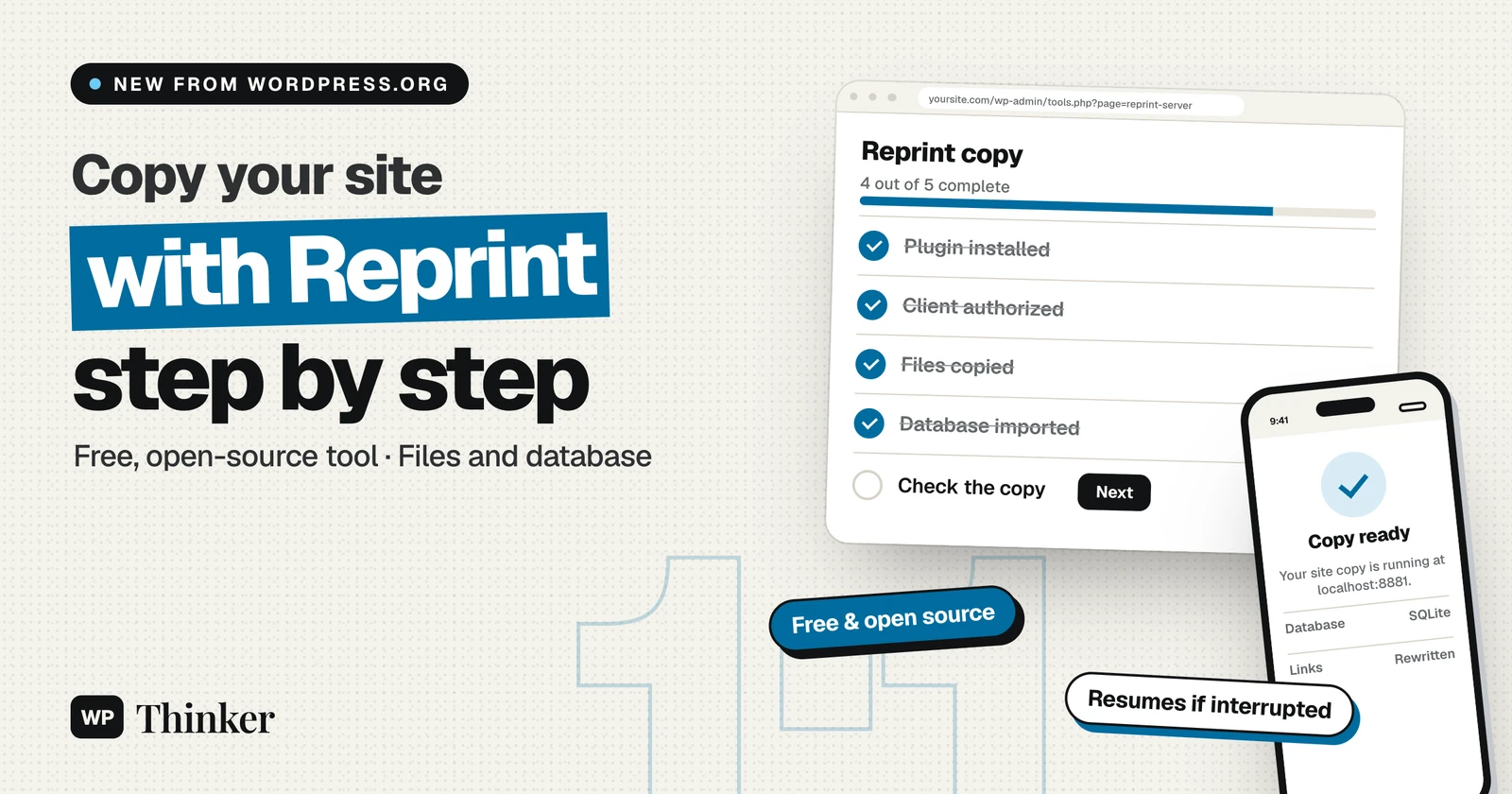
WordPress has always made it easy to export posts, but copying a whole site has meant a backup plugin, a migration service or a lot of manual work. On November 13, WordPress.org announced Reprint, a free, open-source tool that copies a site's files and database. In this guide we explain what it does, how to copy a WordPress site with Reprint step by step, and where it fits next to the migration plugins you may already use.
Moving a site between hosts is one of the most common jobs in WordPress, so a free official option is worth a close look. We installed the plugin on a test site to check the admin screens for this guide. The commands below come from the official Reprint documentation on WordPress.org.
What Is Reprint?
Reprint comes in two parts. A plugin goes on the site you want to copy, and a command-line client runs on the computer or server that receives the copy. According to the WordPress.org announcement, it's part of the Data Liberation project that WordPress has been working on since 2024.
Here's what makes it different from a typical migration plugin:
- No big archive. Reprint sends files and database rows in small parts, so your old host doesn't need room for a full-site zip file.
- It can resume. If the connection drops or the host times out, you run the same command again and it continues from where it stopped.
- It fixes links. When the site address changes, it rewrites links in posts, blocks, shortcodes, JSON and serialized data without breaking them.
- Repeat copies are faster. Later runs skip files that haven't changed.
- No third-party service. Your data travels over HTTPS straight to the client you authorize, and you don't need an account or subscription.
| Detail | Reprint |
|---|---|
| Price | Free and open source |
| Developer | WordPress.org |
| Version (Nov 19, 2026) | 0.11.9 |
| Source site needs | WordPress 4.7 or later, PHP 5.6.20 or later |
| Receiving computer needs | Command-line PHP 7.4 or later |
| Database for the copy | MySQL or SQLite |
Before You Start
You'll need administrator access to the WordPress site you want to copy. On the receiving side, you need a terminal on macOS, Linux or Windows Subsystem for Linux, plus command-line PHP 7.4 or newer. You don't need SSH access to the source site, and you don't need WordPress installed at the destination.
A copy contains everything, including user accounts, password hashes and private content. Keep the copy somewhere private, just as you would a backup. If you're new to this, it's still worth taking a normal backup first with one of the best backup plugins for WordPress.
How to Copy a WordPress Site With Reprint
These steps make a working copy on your own computer, which is the easiest way to try Reprint. We'll use SQLite so you don't need a database server.
Step 1: Download the Reprint Client
Open a terminal on the computer that will receive the copy, create a folder, and download the client:
mkdir reprint-demo
cd reprint-demo
curl -fL https://plugins.svn.wordpress.org/reprint/downloads/reprint.phar -o reprint.phar
php reprint.phar --version
If you see a version number, the client is ready.
Step 2: Install the Plugin on Your Site
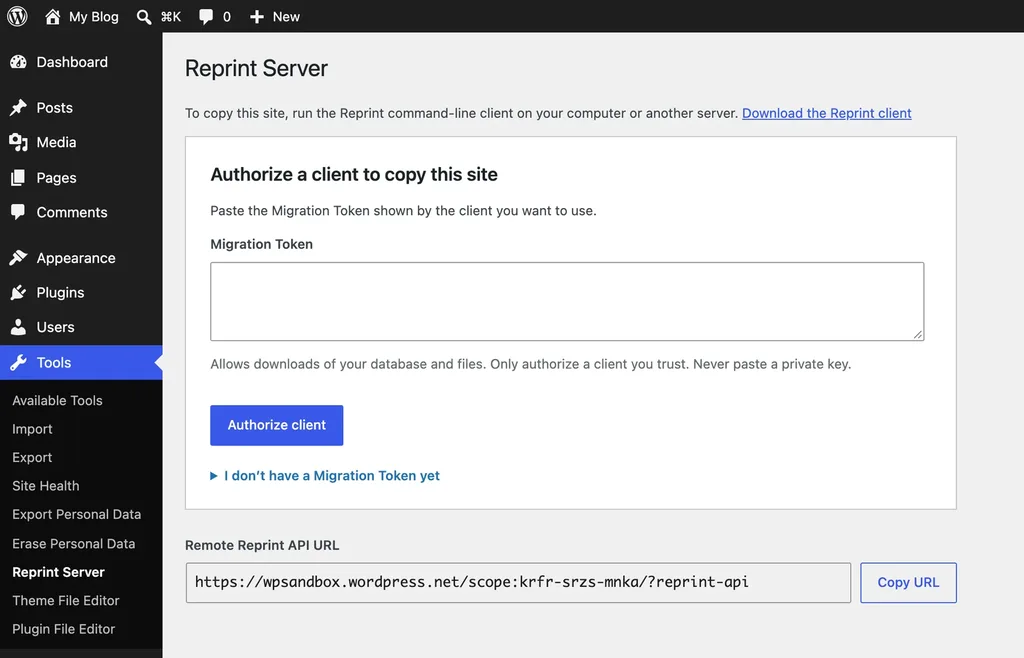
In your site's dashboard, go to Plugins → Add New Plugin, search for Reprint, then install and activate it. Activating the plugin doesn't start a copy, so this step is safe. Next, open Tools → Reprint Server and leave that screen open.
Step 3: Authorize the Client
Back in the terminal, create a key for your site. Replace the address with your own site's HTTPS address:
php reprint.phar keygen https://example.com \
 --state-dir=./state --out=./reprint-key.pem
The client prints a Migration Token. Paste it into the Reprint Server screen and click Authorize client. The private key stays in the reprint-key.pem file on your computer, so keep that file safe.
Step 4: Start the Copy
Now run the pull command:
php reprint.phar pull https://example.com \
 --private-key-path=./reprint-key.pem \
 --state-dir=./state --fs-root=./files \
 --target-engine=sqlite --new-site-url=http://localhost:8881
Reprint checks the site, downloads the files and database, rewrites the site address to http://localhost:8881 and starts a local server. Large sites take a while, so keep the terminal open. If you already run MySQL, the documentation has the same command with MySQL options instead.
Step 5: Check the Copy
Open http://localhost:8881 in your browser and check that the home page loads, internal links stay on the copy, images appear and you can log in at /wp-admin/. To start the copy again later, run bash state/runtime/start.sh from the same folder.
One important warning: the copy still has your live plugin settings. Before you test anything, turn off email sending, payment gateways and other connected services, or a test order could charge a real card or email a real customer.
Using Reprint to Move to a New Host
Reprint can also prepare a site on a new server. You run the client on the new server with MySQL options, a --flatten-to folder for your web server to serve, and the new domain as the site address. The official move to another host guide has the full command.
The safe order for a move is the same as with any migration:
- Copy the site to the new host while the old one keeps serving visitors.
- Test the copy using your host's preview link or a hosts-file override.
- Pause changes on the old site, such as new orders, comments and uploads.
- Run one final copy so nothing is lost.
- Point your domain to the new host and keep the old site until you're sure everything works.
Reprint doesn't switch DNS for you, and a repeated database pull replaces data rather than merging it. Our full guide on how to migrate WordPress to a new host covers the DNS and SSL steps.
Reprint vs Migration Plugins
Should Reprint replace your current migration plugin? For most beginners, not yet. Reprint needs the command line on the receiving side, while popular migration plugins work entirely in the dashboard. It's also a version 0.x release, so expect changes.
That said, Reprint has real strengths. It's free with no size limits or upsells, it handles large sites well because it streams instead of zipping, and it resumes after failures. Developers will also like that it works with SQLite, which makes a local staging copy very quick to set up. If you're comfortable in a terminal, it's worth a try now.
How to Remove Reprint Access
When you're done, go to Tools → Reprint Server and remove the client's Migration Token. Revoking access doesn't delete copies you've already made. If you don't plan to use Reprint again, delete the plugin from the Plugins screen, which also removes its stored settings and credentials.
Reprint FAQs
Is Reprint free?
Yes. Reprint is free, open-source software from WordPress.org, and it doesn't need an account or subscription.
Can I copy a live site with Reprint?
Yes. Visitors can keep using the site while it's copied. For a final move, pause new orders and uploads, then take one last copy so nothing is lost.
Can Reprint push changes back to my live site?
No. The WordPress.org plugin only lets you download a copy. Changes you make to the copy stay in the copy.
Can I try Reprint without installing anything?
Yes. WordPress.org offers an experimental browser-based demo in WordPress Playground that copies a sample site, with nothing to install.
Final Thoughts
Reprint is a welcome addition from WordPress.org: a free, open tool to copy a WordPress site that handles big sites, resumes after failures and fixes links on its own. Right now, it suits developers and anyone comfortable in a terminal more than complete beginners. Start with a test site, copy a WordPress site with Reprint to your own computer, and see how it fits your workflow before you use it for a real host move.