So your host is giving you headaches, is it? Pages crawl, the renewal bill has suddenly doubled, and support takes two whole days to reply. Still, most people stay put, and the reason is plain fear. What if the site breaks halfway through? Relax, because you absolutely can migrate a WordPress site to a new host without spending anything on tools, and if you follow the right order, your readers and customers won't even know you moved.
Before anything else, a little about me. I've been building with WordPress since 2014, and even now several of my own online stores run on WordPress and WooCommerce, so a move that loses even one order is simply not acceptable for me. For this guide, on 28 October 2026, I set up fresh WordPress 7.1.3 test sites and went through the free tools myself: UpdraftPlus 1.26.14 and Migrate Guru 6.72. The server-side steps follow WordPress's own "Moving WordPress" guide and Google's advice on moving a site without changing URLs, both of which I read the same day.
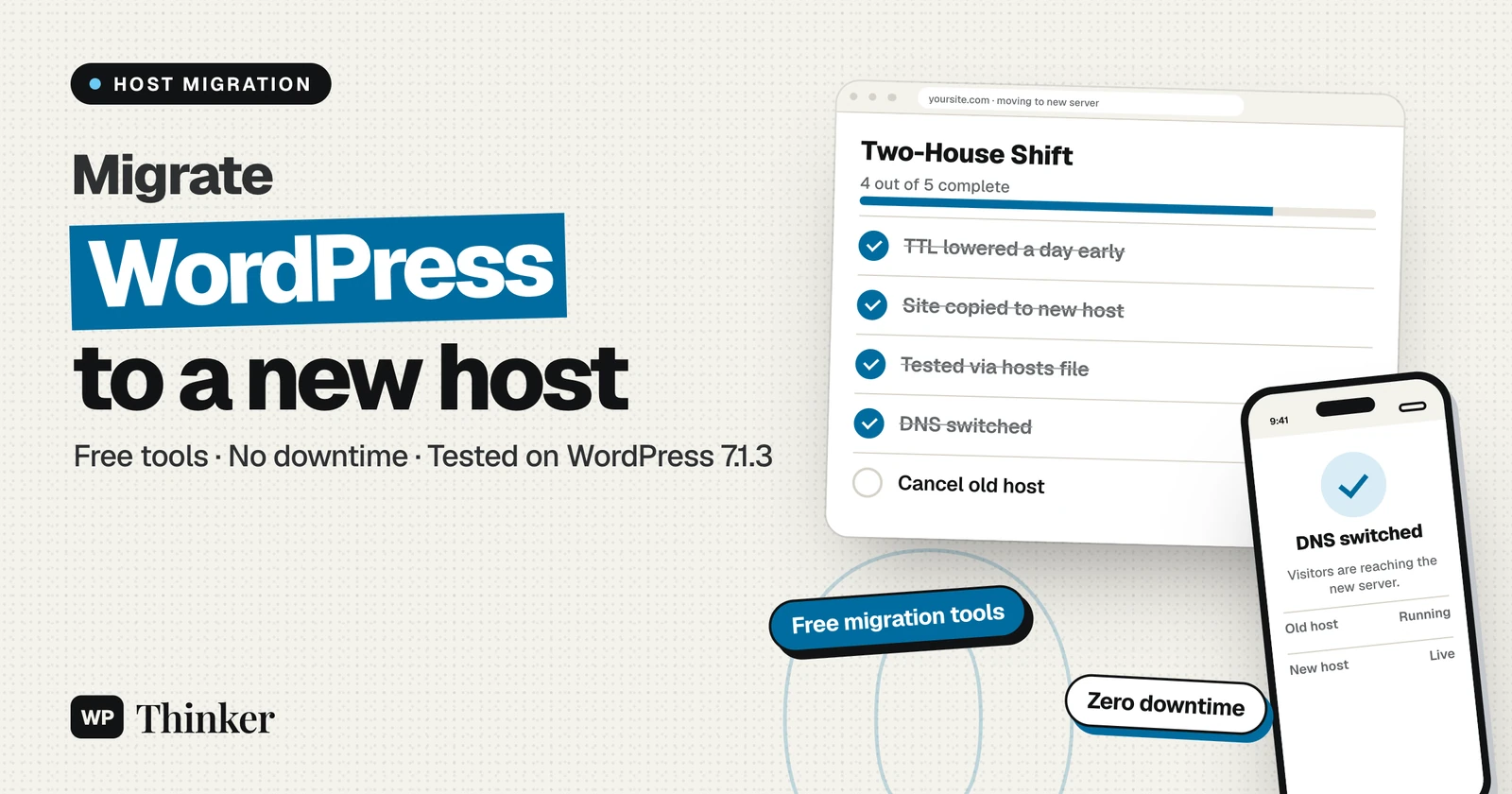
Want the zero-downtime secret in one line? Build the new home fully while the old one keeps serving visitors. Drop your DNS TTL a day early, copy the site over with free UpdraftPlus (or by hand), and check the copy privately through your computer's hosts file. Happy with it? Only then point the domain's DNS at the new server, sort out SSL there, and let the old host run a few more days before you cancel it.
Why You Can Migrate a WordPress Site to a New Host With No Downtime
Want to know how most migrations go wrong? It's almost always the order of the steps. People cancel the old plan, point the domain at the new host, and only after that start copying files across. For the next few hours, visitors land on an empty server, and that's exactly the downtime people fear.
Think of how a family shifts house in India. You don't hand back the keys of the old flat first and then go looking for a gas connection in the new one, right? You get water, electricity and the gas cylinder sorted in the new place, carry the boxes over, and sleep in the old flat until the new one is ready. I call this the Two-House Shift, and a WordPress move works the same way. Both houses stay open for a while, and the domain is the address card you update at the end.
But how can two servers share one domain without a mess? The explanation is surprisingly simple. DNS is like the phone directory of the internet, and every internet provider keeps its own copy of the page temporarily. So after you change the number, some people dial the new server immediately and some still dial the old one for a few hours. Since both of them pick up with the same website, nobody ever hears a dead line. New to DNS? My explainer on what DNS is covers the basics in everyday language.
Before You Start: Line Up These Five Things
- The new hosting account, ready, with the same or a newer PHP version than your old host runs.
- A full backup of the current site, files and database both. If you haven't done one before, my guide on how to back up and restore a WordPress site shows every click.
- Access to your DNS settings, which normally live with your domain registrar, or with whoever your nameservers point to.
- A lower TTL, set a day early. TTL decides how long DNS answers stay cached. According to Google's site-move guide, lowering it ahead of the move helps the new settings reach internet providers faster. A few minutes is plenty; Cloudflare, for example, uses 300 seconds for its Auto setting on proxied records.
- A quiet time slot, especially for online stores, which I'll explain properly in Step 4.
Still choosing where to go? Our hosting comparison shows what each host really costs over four years, renewals included, which is usually where the unpleasant surprises hide.
How to Migrate a WordPress Site to a New Host, Step by Step
Step 1: Point Only Your Own Computer at the New Server
This is the bit most tutorials skip, and it's my favourite part of the whole process. Your computer has a small text file called hosts, which it checks before asking DNS anything. Add your domain there with the new server's IP address, and your computer alone visits the new host. The rest of the world still sees the old site.
Copy the server's IP address from your new hosting dashboard, and then add one line to the hosts file:
203.0.113.10 example.com www.example.comSwap in your real IP and domain, of course; that IP above is just a documentation example. Where's this file hiding? On Windows it sits at C:\Windows\System32\drivers\etc\hosts, and Notepad needs to be run as administrator or Windows simply refuses to save your change. On a Mac or Linux machine it's /etc/hosts, so typing sudo nano /etc/hosts in Terminal will open it for editing. And because browsers are rather stubborn about old DNS answers, it's best to quit the browser fully after saving and start it again.
Bonus: because nothing is public yet, there's no half-built copy for Google to stumble on. Google's guide warns about test sites getting indexed by accident, and this way the problem simply never comes up.
Step 2: Copy the Site Over (Three Free Ways)
With the hosts file pointing at the new server, install a fresh WordPress there using your host's one-click installer, on your real domain, and then bring your existing site across using whichever of these methods suits you.
Way 1: UpdraftPlus (free). Take a full backup on the old site with UpdraftPlus and download all five parts: Database, Plugins, Themes, Uploads and Others. Then, on the new WordPress, put UpdraftPlus on as well. Under Settings, then UpdraftPlus Backups, you'll spot a small "Upload backup files" link just above Existing backups.
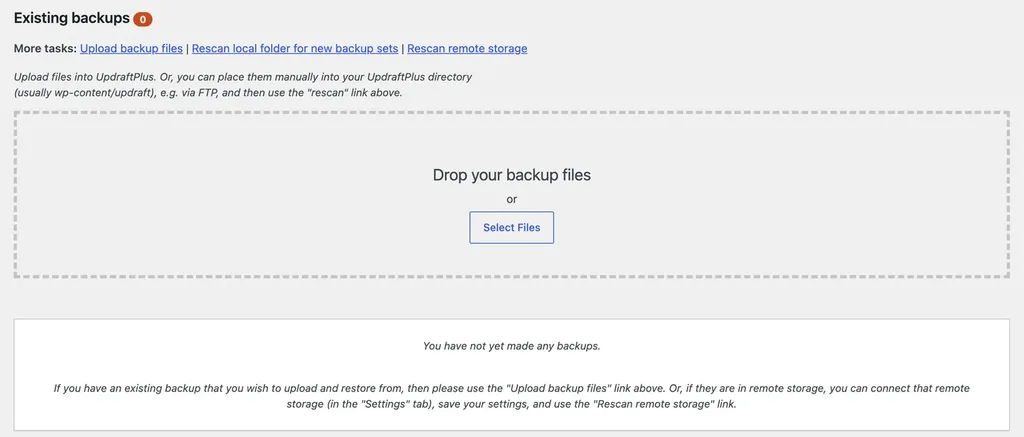
Drop the files in, and the backup shows up with a Restore button, so tick all five components and restore everything. Since the domain hasn't changed, there's no URL rewriting to worry about at all. One heads-up: the free version can't push a site directly from one server to another. When I opened its Migrate / Clone tab, it clearly said direct site-to-site migration is a Premium feature. Upload and restore works fine for free, though, and that's what we're doing here.
Way 2: By hand. WordPress's own "Moving WordPress" guide makes this sound almost too easy: if the database and URL stay the same, copying the files and the database is enough. Practically speaking, you pull the WordPress folder down over SFTP, export the database in phpMyAdmin, push those files up to the new server, and then import the .sql file into a fresh, empty database there. New host gave you a different database name or user? No problem, just edit those values in wp-config.php and you're sorted. My backup and restore guide has every click of this.
Way 3: Migrate Guru (free, for big sites). Migrate Guru copies the site server to server, so your computer never downloads anything. Its WordPress.org page says it handles sites up to 200 GB, and it had 200,000+ active installs and a 98% rating when I checked. The setup I saw was three steps: install it on both sites, paste the new site's migration key into the old one, then enter your email and start.
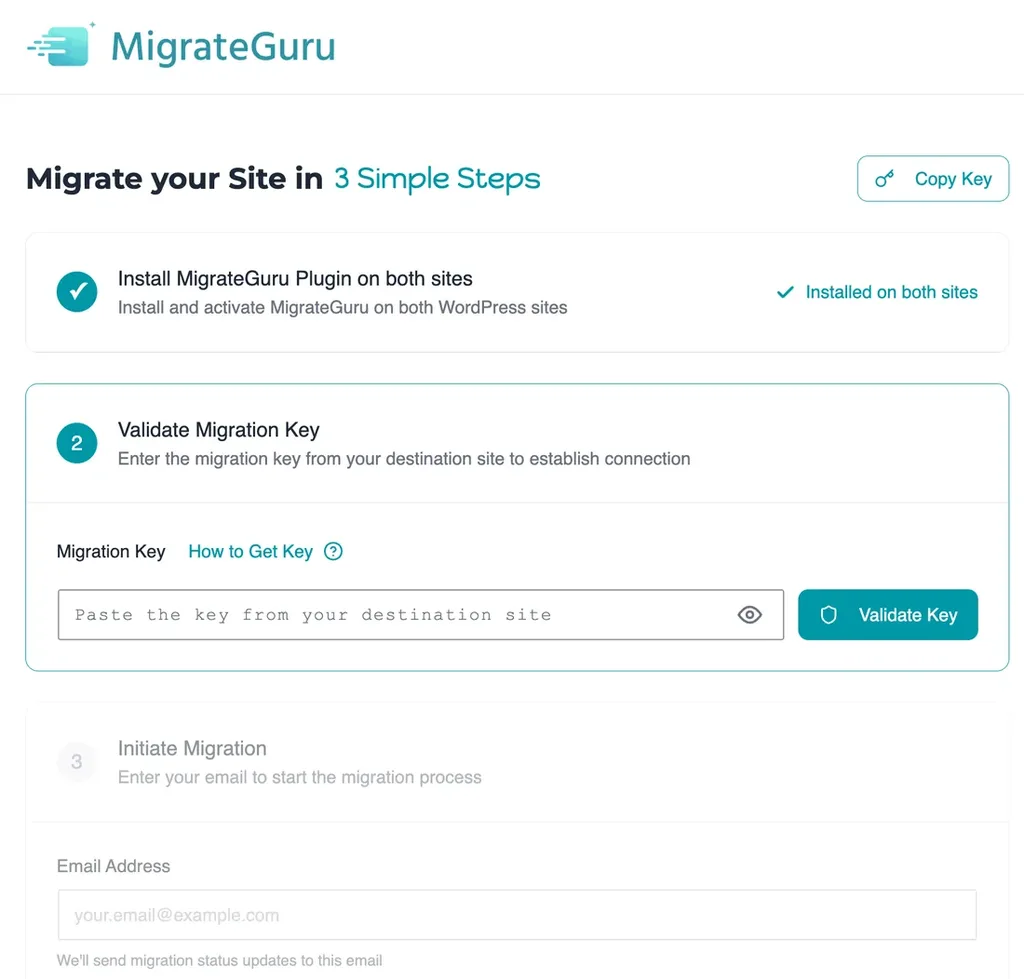
There's one important limitation, though, because its servers can't see your hosts-file trick, so the new WordPress must be reachable at an address they can open, like a temporary domain from your new host. If the copy lands on a temporary address, you'll have to switch its URLs back to your real domain before going live. Also, its FAQ says it doesn't support moves from a local computer.
What about Duplicator, which is popular with 1+ million active installations? Version 5.1.0 wouldn't activate on my sandbox test site, which is more a limit of that sandbox than of the plugin. I'd rather not walk you through screens I haven't seen with my own eyes.
Step 3: Test Everything Before Anyone Else Sees It
Wait, are you even looking at the new server? It's easy to fool yourself here. My favourite cheap check is a tiny test.txt file uploaded only to the new host; open example.com/test.txt, and if it shows up, you're in the right place. Then go through the site like a nosy customer, which is exactly what Google's guide suggests too: pages, images, forms and downloads.
- Open the home page, a few posts and a couple of pages.
- Log in to the dashboard, write two lines in a new draft, and hit save.
- Send yourself a message from your own contact form, and wait to see whether it really lands in your inbox.
- Running WooCommerce? Buy something from yourself using a test payment method.
- Posts throwing 404 errors? Usually just re-saving Settings, then Permalinks, sorts that out.
Step 4: Freeze Changes and Take a Final Copy
Here's the honest part nobody likes to say. "No downtime" doesn't automatically mean "no lost data". Anything that happens on the old site after you copied it, like a new comment, a form entry or, worst of all, an order, won't exist on the new host. For a blog, simply don't publish anything during the move. For a store, pick a quiet hour, take a fresh database copy right before the switch, and import it on the new host. That way the last few orders come along too.
Step 5: Switch the DNS
Now the big moment, which is honestly a bit of an anticlimax. At your DNS provider, change the A record for your domain (and for www, if it has its own record) to the new server's IP. Some hosts ask you to change nameservers instead. That works too, but copy every existing record across first, especially MX records for email and TXT records like SPF. Forget those, and your email stops while the website works fine, which makes for a very confusing afternoon.
Because you lowered the TTL yesterday, most visitors will reach the new server within a few minutes. The rest still reach the old host for a while, and that's fine, because it's still running the same site.
Step 6: Get SSL Working on the New Host
There's one small complication here, and it trips up a lot of people. Free SSL certificates from Let's Encrypt are usually checked with something called HTTP-01, which, as Let's Encrypt's documentation explains, means placing a file on your web server and reading it back through your domain. See the problem? That check can only succeed once the domain actually points at the new server. So the moment the DNS switch is done, go and request the certificate, before you touch anything else.
Want the certificate ready even before the switch? Then ask your host about the DNS-01 check, where you prove you own the domain by adding a TXT record, so it doesn't care where the domain points yet. Not every hosting company offers it, mind you. After the padlock appears, have a look at my guide on how to force SSL in WordPress, so no page quietly stays on plain http.
Step 7: Clean Up, Watch, Then Cancel the Old Host
Now it's time for a little housekeeping. Take your extra line out of the hosts file, or your computer will keep ignoring real DNS and you'll go mad wondering why. That little test.txt can go too, since its job is done, and the TTL can return to its usual value. The old host, though? Leave it running for at least a few days, and download one final backup from it before you even think of cancelling.
Google's guide says to shut down the old hosting only when you're confident everyone, Googlebot included, is getting the site from the new server. Your old host's traffic statistics will tell you when visits there have dried up, and that's your signal to cancel.
Changing Your Domain at the Same Time? Do It Separately
If you're also changing the domain name, please don't do both on the same day. Move the host first, let things settle, and change the domain later as its own little project, because when two things change together and something breaks, you won't know which one to blame. A domain change also needs more care, because WordPress stores URLs inside serialized data. WordPress's guide warns that a plain search and replace on the database can break those values, and it suggests tools like Better Search Replace or WP-CLI's search-replace instead. My guide on how to change your domain name in WordPress covers that move.
Which Free Method Should You Use?
| Method | Pick it if… | Watch out for |
|---|---|---|
| UpdraftPlus (free) | your site is small or medium and you like clicking buttons | large backups take a while to upload from your computer |
| By hand (SFTP + phpMyAdmin) | you want full control, or a plugin won't run on the old host | easy to miss a folder or the .htaccess file |
| Migrate Guru (free) | the site is huge and your internet is slow | the new site needs an address its servers can reach |
Oh, and lots of hosts throw in a free migration when you sign up. Nice, but ask them what exactly they'll copy and when, because the testing and the DNS switch above are still your job at the end of the day.
FAQs: Moving WordPress to a New Host
Will migrating to a new host hurt my Google rankings?
Honestly, no, as long as every URL stays exactly the same as before. Google has a separate guide just for moving a site without URL changes, and the main points are the ones in this article: test the new server, lower the TTL, watch both hosts, and only switch off the old one when traffic has fully moved.
How long does the DNS switch take?
It depends on the TTL that was set before you changed anything. Lowered it a day before? Then most people reach the new server within minutes. Nameserver changes are the slow ones, though, so if you're switching those, give it a day or so before you panic.
Do I need to reinstall my plugins and themes on the new host?
Not at all, because a full backup carries your plugins, themes and uploads with it, along with all your settings in the database. You only install WordPress itself, plus the migration plugin, on the new host.
Will my email stop working?
Only if you change nameservers and forget the email records. Before switching, copy every DNS record, especially MX and TXT, to the new DNS provider. If you just change the A record, your email setup isn't touched at all.
Is a WordPress migration really free?
The tools in this guide are free: UpdraftPlus, Migrate Guru and the manual method cost nothing. You only pay for the new hosting, and for a short while, both hosting plans overlap.
Summing Up
And that, my friend, is the whole story of how to migrate a WordPress site to a new host while your visitors carry on as if nothing happened. Just remember the Two-House Shift. Get the new home completely ready, peek at it privately through your hosts file, freeze changes and grab one last copy, and only then flip the DNS and set up SSL. Keep the old house open for a few days, and only then hand back the keys. Do it in that order, and a host move is just a quiet evening's work.
That's all for now. Which host are you moving to, and why? Do let us know in the comment box below.