You know those movie hackers in dark hoodies, typing green code at lightning speed? Real WordPress hacks rarely look like that. The door is usually something boring, like an old plugin, a lazy password, or an admin account somebody forgot to delete years ago. And that's actually good news, because boring problems have boring fixes. Give me one afternoon, and this WordPress security checklist will take you through all of them, one step at a time, no jargon.
A bit about me before we begin: I've been on WordPress since 2014, and several of my own online stores run on it with WooCommerce even today. For this guide, I sat down on 28 October 2026 with WordPress's own hardening guide and its requirements page. Then I set up a fresh WordPress 7.1.3 test site and ran Site Health on it, just to see what WordPress itself complains about. The screenshots below come from that test site.
Short version? Updates first: WordPress, plugins, themes and PHP, all of them. Clear out what you don't use, and put a two-factor code on top of strong passwords. HTTPS on, file editor off, one good security plugin or firewall, a host that genuinely blocks attacks, a monthly peek at Site Health, and backups parked somewhere other than your server. That's the whole idea in a nutshell. Each of these gets its own step below.
The Five Locks of a Safe Website
Picture how a family looks after its house. Somebody gets the creaky door repaired before it gives way. Somebody keeps an eye on who walks in through the gate. That back door near the kitchen? Locked, always. In many colonies there's a watchman doing rounds at night, and a spare key is usually with an aunt or a neighbour you trust. A website works exactly the same way, so I've grouped the 20 steps into those five locks.
And why does this matter so much? According to Patchstack's State of WordPress Security in 2026 report, 91% of new vulnerabilities were found in plugins and 9% in themes, while WordPress core had just 6, all low priority. In other words, the weak spots are mostly the extras we add ourselves.
Lock 1: Fix the Doors Before They Fall Off (Updates)
1. Update WordPress Itself
Every WordPress update quietly patches holes, so running an old version is like leaving the door open with a welcome mat. The small security releases install themselves by default. The bigger ones, though, sit there waiting for you to press the button. On the day I checked, 7.1.3 was the newest version. Take a backup, click update, and you're done. Not sure how? My guide on how to update WordPress covers it.
2. Switch On Auto-Updates for Plugins and Themes
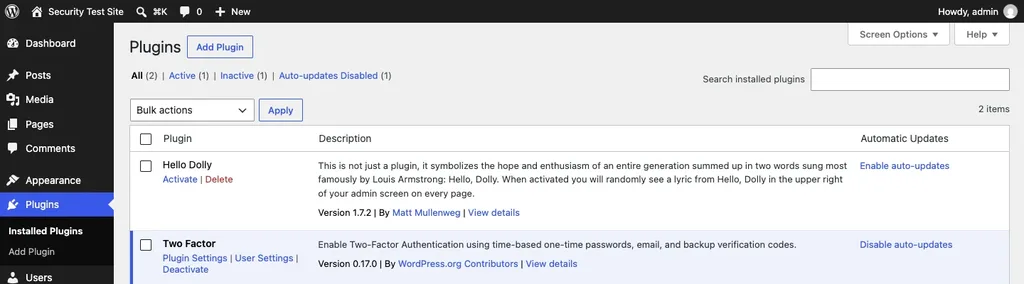
Since most vulnerabilities live in plugins, this one matters a lot. On the Plugins screen, every plugin has an "Enable auto-updates" link in the Automatic Updates column. On my test site, one click turned it into "Disable auto-updates" for the Two Factor plugin, and Site Health then confirmed auto-updates were configured correctly.
Patchstack's report also found that 46% of vulnerabilities weren't fixed in time for public disclosure, so updates alone can't save you every time. They're still your first and cheapest line of defence, though.
3. Throw Out the Plugins and Themes You Don't Use
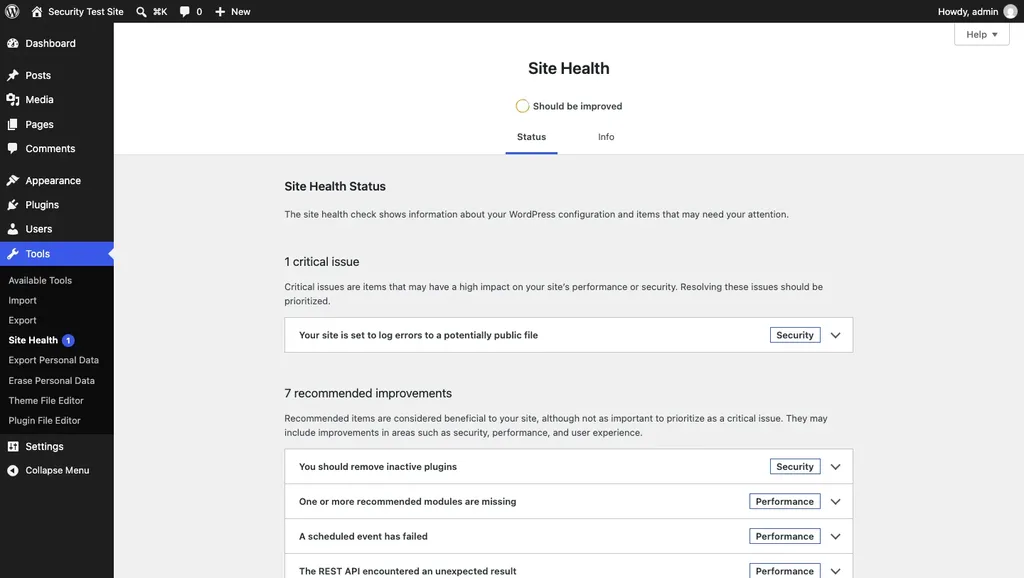
Here's the catch with deactivated plugins: they're switched off, not gone. The code is still sitting in your files, and an attacker can still poke at it. Notice the inactive Hello Dolly plugin in the screenshot above? Site Health flagged exactly that on my test site, with a "You should remove inactive plugins" warning under Security. Keep one default theme as a backup and delete the rest.
4. Install Only From Trusted Sources
Stick to the WordPress.org directory and well-known developers. Please don't touch "nulled" premium plugins from random download sites; they're cracked copies, and many come with hidden backdoors. I've written about the problems with nulled themes and plugins if you want the full story.
5. Run a Supported PHP Version
PHP is nothing but the language WordPress is written in, and once a PHP version gets old, nobody patches it anymore. WordPress's requirements page asks for PHP 8.3 or newer. And going by PHP's own calendar, 8.2 stops getting security fixes on 31 December 2026. Still on it? Then this is your reminder to talk to your host. I've explained the steps in how to update PHP in WordPress.
Lock 2: Guard the Main Gate (Logins)
6. Give Every Account a Strong, Unique Password
Every admin, editor and author needs a long password that isn't used anywhere else. Honestly, nobody can remember twenty of those, so let a password manager create and store them for you. WordPress's own password generator, on the Profile screen, is fine too.
7. Turn On Two-Factor Login
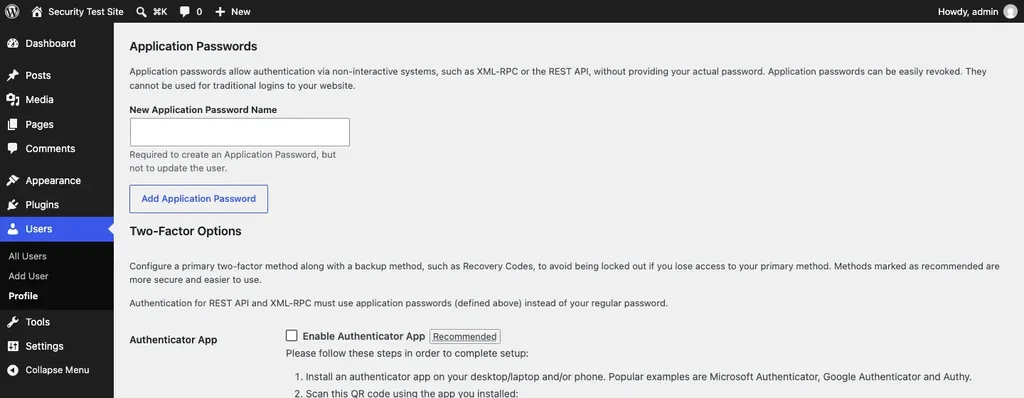
If you do only one thing from this list today, make it this. With two-factor authentication, a stolen password alone isn't enough to get in; the attacker also needs the code from your phone. I installed the free Two Factor plugin, which is published by WordPress.org contributors and has 100,000+ active installs and a 4.8 rating. It added a Two-Factor Options section to my profile, with an authenticator app option marked "Recommended" and recovery codes as a backup method.
8. Retire the "admin" Username and Give Fewer People Admin Rights
"admin" is the first username bots try, so don't use it. Then look at your users list: does your content writer really need to be an Administrator? Usually not. Give people the lowest role that lets them do their job, and remove anyone who has left. My guide to WordPress user roles explains what each role can do.
9. Limit Login Attempts
Bots hammer the login page all day, trying password after password. Most good security plugins can block an IP address after a few failed attempts, and many hosts do this at server level too. You'll also see people moving the login page to a secret address. It does cut down the bot noise, I'll give it that, but think of it as a bonus, never as a swap for strong passwords and two-factor login.
10. Switch Off Open Registration
Unless you run a membership site, nobody should be able to sign up for an account. Under Settings, then General, make sure "Anyone can register" is unticked, and keep the "New User Default Role" set to Subscriber. Site Health even has a check called "Open Registration with privileged default role", so WordPress takes this one seriously.
Lock 3: Close the Back Doors (Settings and Files)
11. Use HTTPS Everywhere
HTTPS encrypts everything between your visitors and your site, including passwords typed on the login page. WordPress's requirements page lists HTTPS support among the things your host should offer, and most hosts give you a free SSL certificate now. Once it's installed, make sure every page loads on https; here's how to force SSL in WordPress.
12. Disable the Built-In File Editor
Look under Tools on my Site Health screenshot further down, and you'll spot "Theme File Editor" and "Plugin File Editor". If someone ever gets into an admin account, those editors let them change your site's code straight from the dashboard. The fix is one line. WordPress's hardening guide says to add define( 'DISALLOW_FILE_EDIT', true ); to wp-config.php, and if you'd like it ready-made, here's my code snippet to disable the editor.
13. Set Safe File Permissions
File permissions sound technical, I know. In simple words, they decide who can read or change each file on the server, and sloppy settings can let the wrong account in. The numbers to remember come from WordPress's hardening guide: 644 for files and 755 for folders, which keeps writing rights with the owner alone. Your host has most likely got this right already, but after a site move, it's worth a quick look. My guide to WordPress file and folder permissions shows how.
14. Turn Off XML-RPC If You Don't Need It
XML-RPC is a leftover from the early days, when apps needed some way to talk to WordPress. Today bots mostly use it to guess passwords, over and over. Is anything on your site still using it? If not, my code snippet to disable XML-RPC switches it off in a minute. Just check before you do, since a few apps and plugins still lean on it.
15. Review Application Passwords and API Keys
Application passwords, which you can see on the Profile screen above, let apps connect to your site without your real password. Handy, yes, but any app password you've stopped using should be revoked today. The same goes for AI and service API keys: WordPress's new Connectors screen masks keys saved in the database but doesn't encrypt them, so keep them in environment variables or wp-config.php where you can. I covered that screen in my list of the best AI plugins for WordPress.
Lock 4: Hire a Watchman (Protection and Monitoring)
16. Add a Security Plugin or Firewall
A good security plugin watches for attacks, scans files for changes, blocks bad logins and alerts you when something looks off. Some also include a firewall that stops attacks before they reach WordPress. I've compared the options in my list of the best security plugins for WordPress; pick one and set it up properly, rather than stacking three.
17. Choose a Host That Takes Security Seriously
Your host is the building your site lives in. Patchstack's report mentions a large test of popular hosting companies in which only 26% of vulnerability attacks were blocked, so don't assume your host has you covered. Look for server-level firewalls, malware scanning, automatic backups and quick PHP updates. Our hosting comparison lists what each host includes.
18. Check Site Health Regularly
WordPress has a free health check built in, under Tools, then Site Health. On my brand-new test site, it found one critical security issue ("Your site is set to log errors to a potentially public file") and seven recommended improvements. It also confirmed that HTTPS, background updates and auto-updates were working. Open it once a month and fix anything marked Security first.
Lock 5: Keep a Spare Key (Backups and Recovery)
19. Back Up Automatically, Store It Elsewhere, and Test It
With a good backup, a hack is a bad afternoon. Without one, it can be the end of the website. So set backups of both files and database to run on their own, keep the copies outside your hosting account, and once in a while, actually restore one to see if it works. A backup you've never tested is just hope. My picks for the best backup plugins will get you started.
20. Write Your "What If" Plan Today
Grab a notebook and write down what you'd do if the site got hacked tomorrow. Whom would you call at your host? Where exactly are the backups? How would you change every password in one go? God forbid it happens, but if it does, my guides on what to do when a WordPress site is hacked and how to find and fix a backdoor will take you through the clean-up. Believe me, a plan written on a calm day is worth ten panicked phone calls at 2 am.
FAQs About This WordPress Security Checklist
Is WordPress secure?
The core software is in good shape: Patchstack's 2026 report counted only 6 core vulnerabilities, all low priority. Most risk comes from plugins, themes, weak passwords and old software, which is exactly what this checklist targets.
Do I really need a security plugin?
For most sites, yes. Your host may block some attacks at server level, but a security plugin adds login protection, file scanning and alerts inside WordPress. But one is enough; two or three security plugins fighting each other only cause trouble.
How often should I take a backup?
If it's a store or a busy business site, I'd go daily. For a small blog that gets one new post a week, weekly is fine. And wherever the copies go, make sure it's not the same server, and try a test restore every few months.
Does changing my login URL make WordPress secure?
It helps a little, mainly by cutting down bot traffic on the login page. By itself, though, it won't stop a determined attacker, so pair it with strong passwords and two-factor login rather than relying on it.
Is there a quick way to check my site's security?
Yes. Open Site Health under Tools first, then let your security plugin do a full scan. Google Search Console helps too: its Security issues report is where Google tells you if it finds malware or hacked pages on your site.
What if my site has already been hacked?
Take a deep breath first. Then ring your host, change all the passwords, yours and everybody else's, and roll back to a clean backup if one exists. Once the site is back, update everything and work out how they got in; otherwise they'll simply walk in again through the same gap.
Summing Up
So there you have it, the full WordPress security checklist, house-style: doors repaired through updates, the gate guarded with strong logins, back doors bolted, a watchman on duty, and the spare key, meaning your tested backups, kept somewhere safe. Will you finish all 20 tonight? Probably not, and that's okay. Do updates, two-factor login and backups first, and pick off the rest over the coming week.
That's all for now. How many of these 20 steps does your site already follow? Do let us know in the comment box below.