A good discount code can turn a window shopper into a buyer, and WooCommerce lets you make one without paying for any extra plugin. In this guide we show you how to create WooCommerce coupons step by step, which of the three discount types to pick, and which restrictions actually work. We tested ten coupon scenarios on a fresh store, so every number below comes from our own cart.
If you run a WooCommerce store and want to plan a sale for Black Friday or any other season, this article will help you. Let us have a look.
Related Articles:
How We Tested WooCommerce Coupons
We ran the test on November 21, 2026 in WordPress Playground, the free in-browser WordPress from WordPress.org. The test site ran WordPress 7.1.5 on PHP 8.3 with WooCommerce 11.3.1, the latest version in the WordPress.org directory that day. WooCommerce itself is free and has over 7 million active installs, according to the WordPress.org plugin API.
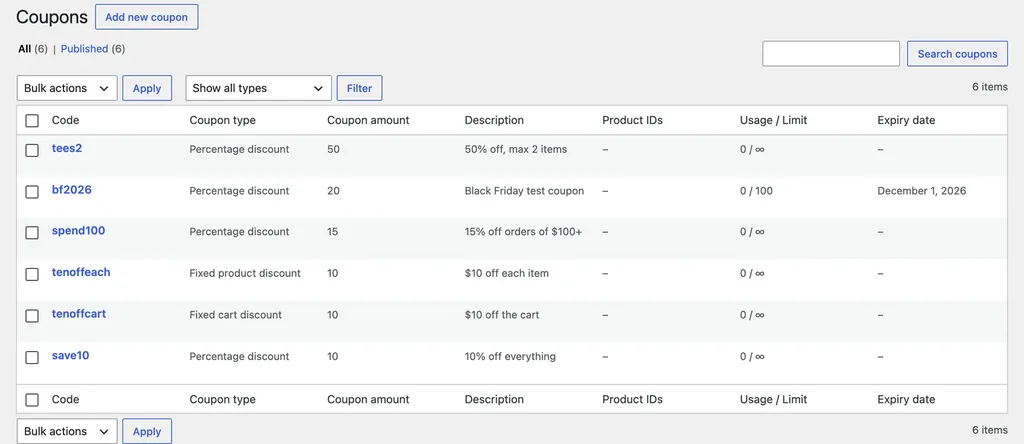
We added three products: a Logo T-Shirt at $20, a Winter Hoodie at $50 that was on sale for $40, and a Coffee Mug at $12. The t-shirt and hoodie went into an "Apparel" category. Then we made six coupons, filled the cart in different ways, and applied each code through WooCommerce's own cart. Taxes and shipping were off, so the totals show the discount alone.
Step 1: Turn On Coupons
Coupons must be switched on before customers can use them. On our fresh test store the setting was already on, but it is always advisable to check, because a theme, an old migration or another admin may have turned it off.
- First, go to WooCommerce > Settings > General.
- Next, find Enable coupons and tick Enable the use of coupon codes.
- Now click Save changes.
Just below it sits Calculate coupon discounts sequentially. It was unticked by default on our site, and we left it that way for every test below.
Step 2: Create Your First Coupon
The official WooCommerce coupon guide lists the same steps we followed:
- First, go to Marketing > Coupons and click Add new coupon.
- Next, type a code such as
save10, or click Generate coupon code for a random one. - Add a short description. Only admins see it, so write the campaign name and dates here.
- Pick the Discount type and enter the Coupon amount as a plain number, without the $ or % sign.
- Set a Coupon expiry date if the offer should end.
- Now click Publish.
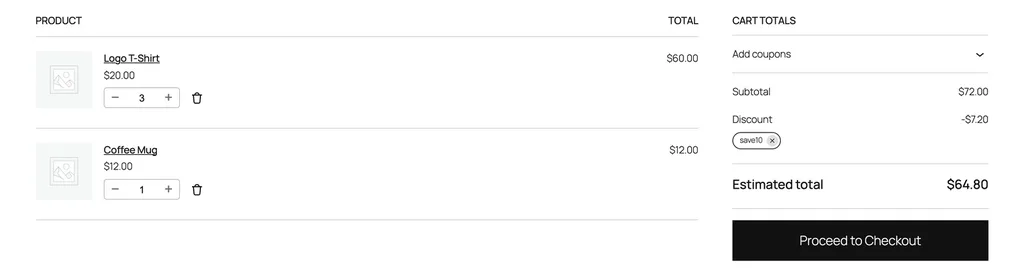
Codes are not case-sensitive. We created save10 and typed SAVE10 in the cart, and it gave the same $6 discount.
The Three Discount Types, Tested
This is where most store owners make mistakes, so we put all three types on the same cart: three Logo T-Shirts, $60 in total.
| Coupon | Discount type | Amount | Discount we got | Cart total |
|---|---|---|---|---|
| save10 | Percentage discount | 10 | $6.00 | $54.00 |
| tenoffcart | Fixed cart discount | 10 | $10.00 | $50.00 |
| tenoffeach | Fixed product discount | 10 | $30.00 | $30.00 |
The same "10" gave three very different results. A fixed product discount takes the amount off each item, so three shirts lost $30, which is half the order. If you meant "$10 off the order", you want a fixed cart discount instead. Getting this wrong on a big sale can cost you a lot of money.
Here is how we suggest you pick:
- Percentage discount: best for store-wide sales, because the discount grows with the order and stays fair on small carts.
- Fixed cart discount: best for "$10 off your first order" style offers, since the cost to you is always the same.
- Fixed product discount: use it only for a single product promotion, and pair it with a usage limit on items (see below).
Usage Restriction: Who and What the Coupon Covers
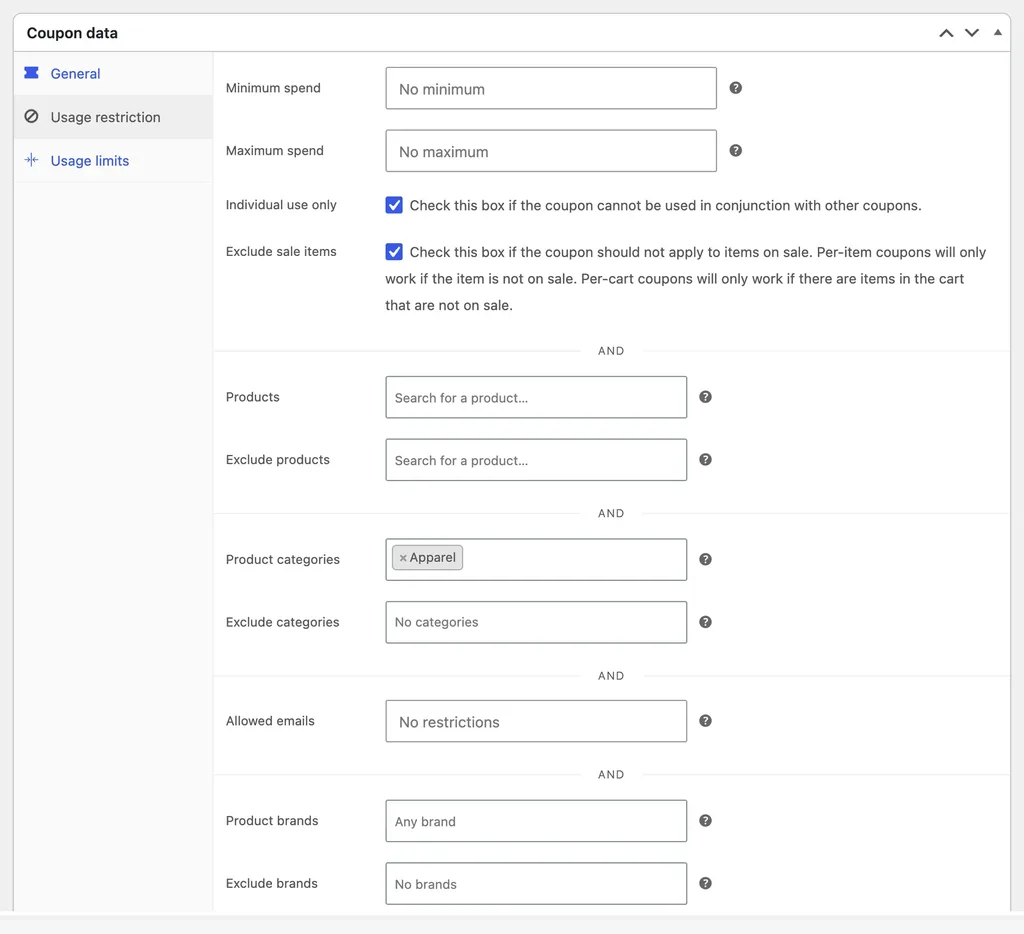
Open the Usage restriction tab under Coupon data to control which carts can use a code. For our Black Friday test coupon bf2026 (20% off) we ticked Individual use only and Exclude sale items, and limited it to the Apparel category.
Here is what happened when we tried it:
| Cart | Coupon | Result |
|---|---|---|
| 3 T-Shirts ($60) | spend100 (15%, minimum spend $100) | Rejected: minimum spend message |
| 5 T-Shirts ($100) | spend100 | $15 off, total $85 |
| 1 Hoodie on sale ($40) | bf2026 | Rejected: not applicable to selected products |
| 2 T-Shirts + 1 Hoodie on sale ($80) | bf2026 | $8 off, only the T-Shirts discounted |
| 2 Coffee Mugs ($24) | bf2026 | Rejected: mug is not in Apparel |
Two things stood out. First, the minimum spend of exactly $100 was accepted at $100, so the limit includes the amount you type. Second, the rejection message for the sale item and for the mug was the same generic "not applicable" text. Customers will not know which rule blocked them, so state your rules clearly in the email or banner that shares the code.
The Allowed emails field also accepts a wildcard such as *@yourcompany.com, which is handy for staff discounts. The WooCommerce guide says this check runs against the customer's billing email. We did not test this field.
Usage Limits: How Many Times It Works
The Usage limits tab has three fields. For bf2026 we set a limit of 100 uses in total and 1 use per customer, so the coupon list shows "0 / 100" until orders come in.
- Usage limit per coupon: the total number of times anyone can use it.
- Limit usage to X items: how many items get a percentage or fixed product discount.
- Usage limit per user: how many times one customer can use it.
We tested the item limit with tees2, a 50% coupon limited to 2 items. On a cart of four $20 shirts it took off $20, which is half price on two shirts only. Thankfully this is the safety net you need for any generous product discount.
Common Mistakes We Found
Our biggest surprise came from stacking. We applied save10 first and then the individual-use bf2026. WooCommerce did not reject the second code. Instead it quietly removed save10 and kept only bf2026, for a $12 discount. So "individual use" means the last such code wins, not the first one.
Other mistakes to avoid:
- Typing a % or $ sign in the amount. Enter only the number.
- Setting a minimum spend higher than the maximum spend. The WooCommerce guide says version 11.2 and later reject this combination when you save.
- Forgetting the expiry date. The guide notes that a coupon stops working on the date you set, so pick the day after your sale ends. Our
bf2026code expires on December 1, 2026. - Skipping a test order. Always add eligible and non-eligible products to a cart and apply the code before you share it.
Frequently Asked Questions
Do WooCommerce Coupons Need a Paid Plugin?
No. Percentage, fixed cart and fixed product coupons, plus all the restrictions in this guide, are part of the free WooCommerce plugin. We used nothing else in our test.
Can Customers Use Two Coupons Together?
Yes, unless one of the codes has Individual use only ticked. In our test, applying an individual-use code removed the coupon already in the cart.
Can I Schedule a Coupon for Later?
Yes. The WooCommerce guide says you can click Edit next to the publish date, choose a future date and time, and click Schedule.
Can I Add a Coupon to an Order After It Is Placed?
Store managers can use the Apply coupon button below the items on an editable order, according to the WooCommerce documentation.
Wrapping Up
Creating a coupon takes two minutes, but the discount type and restrictions decide whether your sale makes money. Pick percentage or fixed cart for store-wide offers, keep fixed product discounts on a short leash with an item limit, and always run a test cart first. Follow these steps and your WooCommerce coupons will work exactly the way you planned. Let us know in the comments which coupon has worked best for your store.
Sources
All sources checked on November 21, 2026:
- WooCommerce: Managing Coupons
- WooCommerce: Configuring WooCommerce Settings
- WooCommerce on WordPress.org
- WordPress.org plugin API: WooCommerce
- WordPress Playground
We will retest these WooCommerce coupons and update this guide when a new major version of WooCommerce changes how they work.