Building your first website sounds like a big, complicated project, doesn't it? Domains, hosting, themes, plugins... I know, the jargon alone is enough to make you hand the job to some agency and forget about it. But hold on: if you've ever filled in an online form or moved a photo around in a slideshow, you already have the necessary skills. Seriously. Learning how to build a WordPress website is mostly clicking the right things in the right order, and I'll show you every one of them with a screenshot.
Quick word about me first: I've been using WordPress since 2014, and several of my own eCommerce websites run on it with WooCommerce today. For this guide, I didn't want to describe the steps from memory. So on 28 October 2026, I built a small sample site for a made-up home bakery called Lotus Home Bakery, on a fresh WordPress 7.1.3 install, and took a screenshot at every step. I did it on WordPress Playground, a free testing version of WordPress that runs entirely inside your browser, which is why the web address in a couple of screenshots looks a little odd; yours will show your own domain.
Short version? You buy a domain and hosting, and your host puts WordPress on it in one click. Then you name the site, fix the permalinks, pick a theme and colours, make your Home, About, Contact and Blog pages, add a contact form, set the homepage and menu, and publish a first post. Keep a weekend free; most of it goes into writing, not into WordPress.
The Shop Opening Plan
Ever watched someone open a small shop in your colony? Building a website follows exactly the same sequence.
- The domain name? That's the name board above the shutter, the one people actually remember.
- Hosting is nothing but the rented space your shop sits in.
- WordPress brings in the shelves, the counter and the billing machine.
- Your theme is the paint and the interior decoration.
- Pages and plugins are the stock, plus extra gadgets like the card machine.
Go in that order and it all feels very doable. Jump around, and you'll be picking wallpaper for a shop you haven't even rented. Don't laugh; people do exactly that with websites.
What You Need to Build a WordPress Website
Not much, honestly: a domain name, a hosting plan and an evening or two. Keep these ready as well, and the whole process goes much faster:
- your business name and one line about what you do;
- a logo, even a simple one (you can add it later);
- a few good photos of your products or your work;
- the text for your About and Contact pages.
No coding is needed, not even a single line.
Step 1: Pick a Domain Name
Your domain is your website's address, like lotushomebakery.com for my sample bakery. Take your time here, because if you change it later, you'll be telling every customer about the new address, and your Google rankings can wobble for a while too.
My simple rules? Short is always better, so try saying it to a friend on the phone; if they can type it without asking twice, it's a keeper. And go for .com, or your country's ending like .in, wherever possible. Hyphens and numbers only confuse people, so leave them out. Also, plenty of hosts throw in a free domain for year one, so you can often pick up both in a single order.
Step 2: Pick a Good Host
Hosting is where your website physically lives, so coming to the money part, this is the one bill that genuinely matters, and the real trap is the renewal price. A plan that looks like $2 a month can cost four times as much once the first term ends.
That's exactly why we built our hosting comparison, which ranks hosts by what you'll really pay over four years, renewals included. When I opened it while writing this guide, DreamHost had the lowest four-year cost at $96, and Hostinger came second at $120.
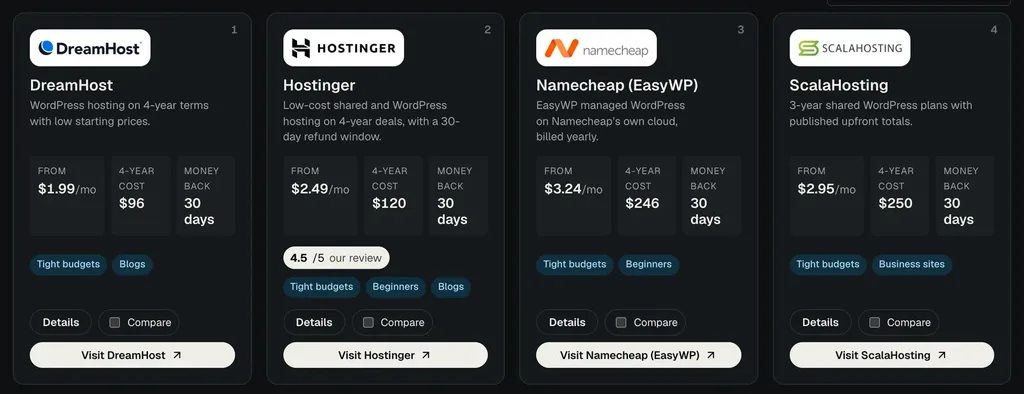
Take Hostinger's Premium plan as the example: it's $2.49 a month, but only when all 48 months are paid in one go, which means $119.52 upfront. You get a free domain for year one and space for 3 websites. The catch comes at renewal, when it goes up to $10.99 a month, so keep that number in your budget. What should you actually look for? For a first site, just three things, really: a one-click WordPress installer, free SSL (the padlock in the address bar) and regular backups; everything else is a nice extra.
Seen WordPress.com and got confused? That's a separate hosted service; I've explained the difference in WordPress.com vs WordPress.org. This guide uses the free, open-source WordPress software on your own hosting.
Step 3: Install WordPress and Log In
Here's the good part. You won't download or upload a single file. Log in to your hosting account and look for the WordPress installer; almost every host has one sitting in the control panel. It asks for a few things, like which domain to use, a site name, an administrator username and a password. Fill them in and hit install. Go make yourself a cup of chai. By the time it's ready, WordPress usually is too. (Is your host's panel different? Our WordPress install guide covers every method, so check it there.)
Then open yourdomain.com/wp-admin in your browser, which takes you to your login page, and you'll be seeing it a lot, so bookmark it immediately.
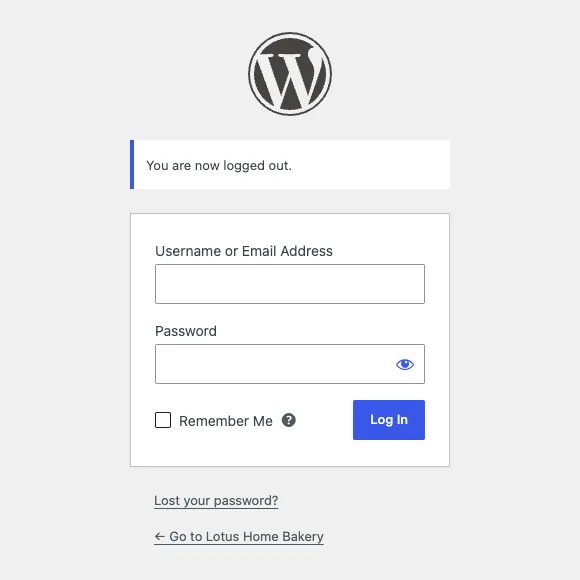
And please, don't pick "admin" as your username, because that's the first one hackers try. Let your password manager make the password, too.
Step 4: Look Around the Dashboard
Once you're in, the dashboard opens up. Mine greeted me with a huge "Welcome to WordPress!" box on top. Under it were three shortcuts, to add a new page, open the site editor or edit styles.
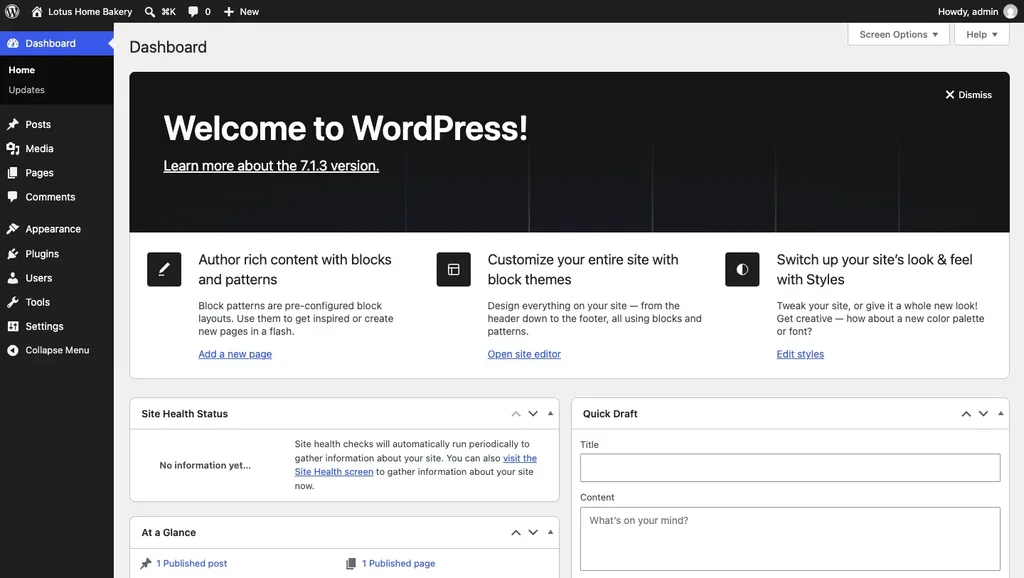
Now, see that black menu on the left? Pretty much everything in WordPress happens from there. Posts are your blog articles, while Pages hold the permanent stuff, like About and Contact. Appearance controls the design, Plugins adds extra features, and Settings holds the basic configuration. That's most of what you'll ever touch, believe me.
Step 5: Set Your Site Title, Tagline and Timezone
My first stop was Settings, then General. In the Site Title box I typed "Lotus Home Bakery", and for the Tagline, "Fresh cakes and cookies, baked to order". Whatever you put in the title appears in browser tabs and in Google, so don't get creative here; just use your actual business name.
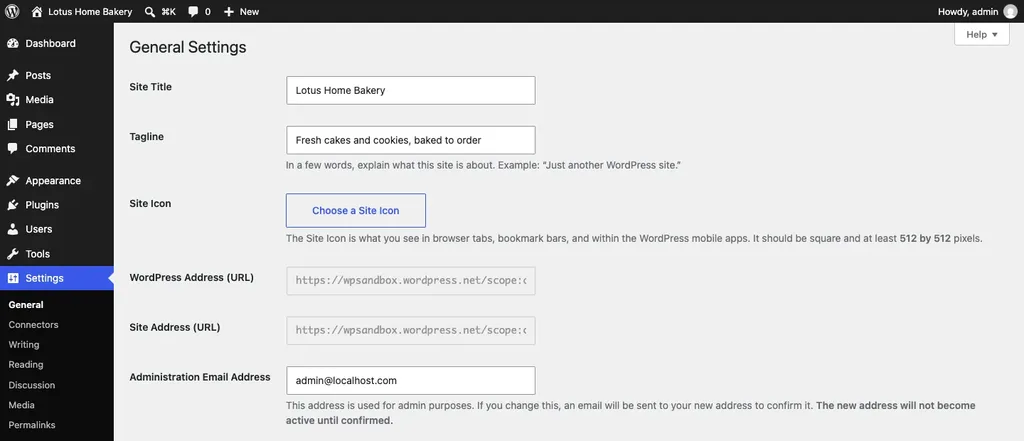
Scroll down a little and set the Timezone to your city. I picked Kolkata, which covers all of India, so scheduled posts go out at the right time, and then clicked Save Changes at the bottom.
Step 6: Switch Your Permalinks to "Post name"
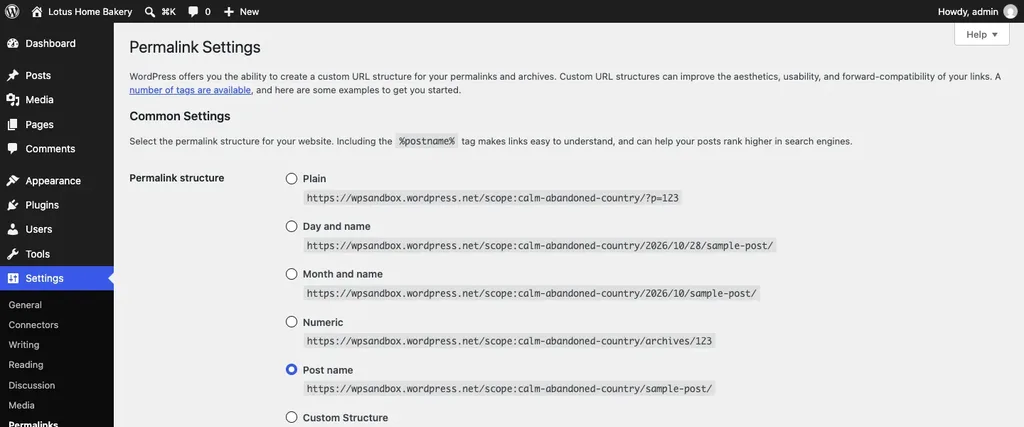
Permalinks are the permanent web addresses of your pages and posts. On my fresh install, WordPress was using Plain links like ?p=123. Nobody remembers those, and they tell Google absolutely nothing about the page.
I went to Settings, then Permalinks, ticked Post name and clicked Save. After that, my About Us page got the address /about-us/, which is clean and readable, and Google likes it too. So do it on day one; change it after Google has found your pages, and you'll be stuck setting up redirects.
Step 7: Pick a Theme You Like
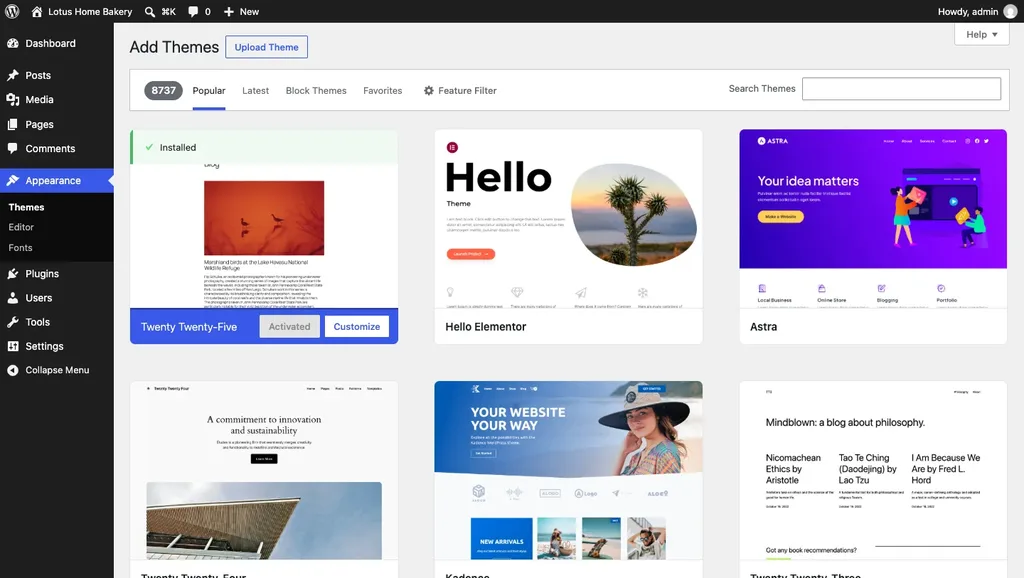
The theme decides the look of your entire site. WordPress 7.1 comes with Twenty Twenty-Five already active, and it's a genuinely lovely starting point for beginners. It's a block theme, so you can change nearly everything visually, without code.
Want to look around anyway? Under Appearance, then Themes, there's an Add Theme button at the top. On my install, that screen showed 8,735 free themes, with popular names like Hello Elementor, Astra and Kadence near the top.
My advice: don't spend three days choosing; pick a well-rated theme that was updated recently, and put your energy into the content. For more ideas, see my picks of the best WordPress themes for business. For the bakery, I stuck with Twenty Twenty-Five.
Step 8: Pick Your Colours and Fonts in the Site Editor
Now comes the fun bit: under Appearance, click Editor to open the Site Editor. On the left you'll see the Design menu, which in WordPress 7.1 has Identity, Styles, Pages, Navigation, Patterns and Templates.
I clicked Styles and then Browse styles, and up came nine ready-made design variations from Twenty Twenty-Five, every one with a different mix of colours and fonts. Now, a bakery should feel warm, no? So I clicked Sunrise: deep maroon background, soft pink text. Very cake-shop. The preview on the right updates immediately when you click.
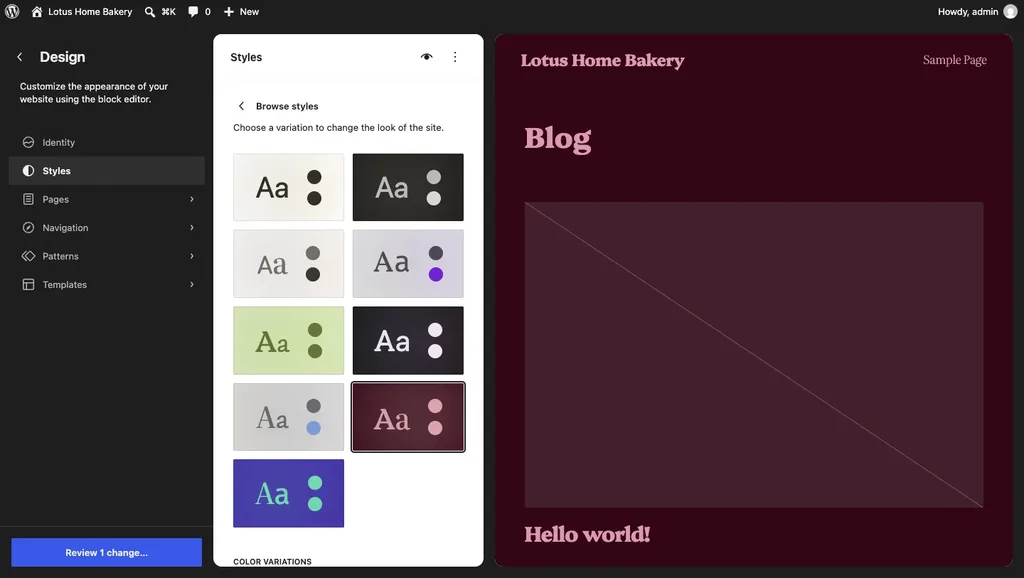
Nothing is saved yet, mind you, so click "Review 1 change…" at the bottom left, then Save. Want finer control? Typography and Colors in the same Styles panel let you change fonts and individual colours too.
Step 9: Make Your Main Pages
To start with, most small business sites need just four pages: Home, About, Contact and Blog. WordPress also creates a draft Privacy Policy page for you. Fill it in and publish it before launch day.
The About page
Over in Pages, I clicked Add Page, which opens the block editor. Here, every piece of the page is a "block", whether it's a paragraph, a heading, a list or an image. For the title I typed "About Us", and under it went a short paragraph, a heading, and a list of what the bakery makes.
Want to add something? Hit the blue + in the top left corner. The block inserter opens with every block sorted into groups like Text and Media, and there's a search box if you already know what you want.
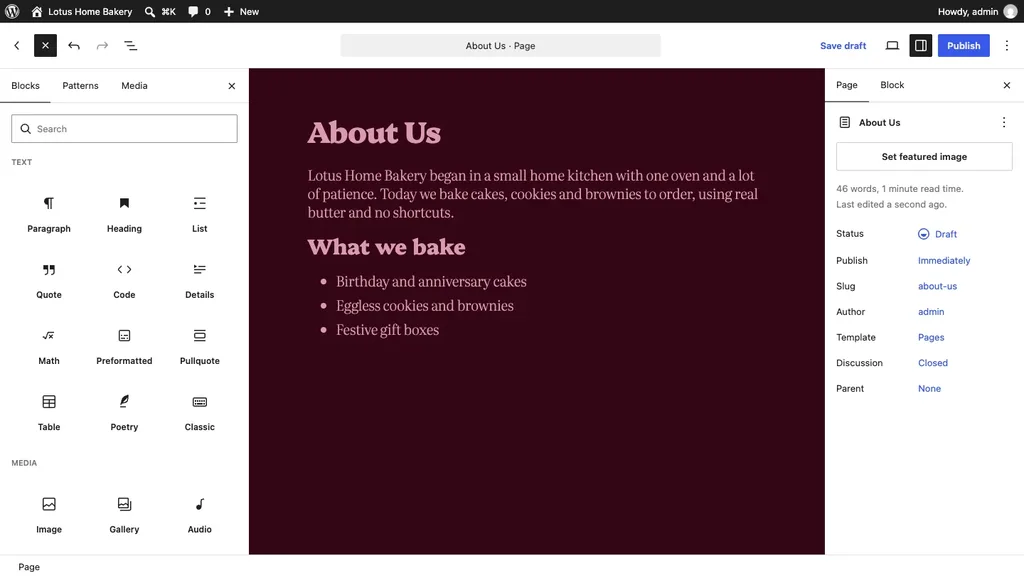
Happy with the page? Click Publish, then Publish again to confirm it.
The Home page, the shortcut way
Here's a trick that saves hours: instead of building your homepage block by block, start from a pattern, which is nothing but a ready-made layout. I made a new page called Home, opened the inserter, switched to the Patterns tab and picked the Pages category. Twenty Twenty-Five has full-page layouts in there, including one called "Business homepage".
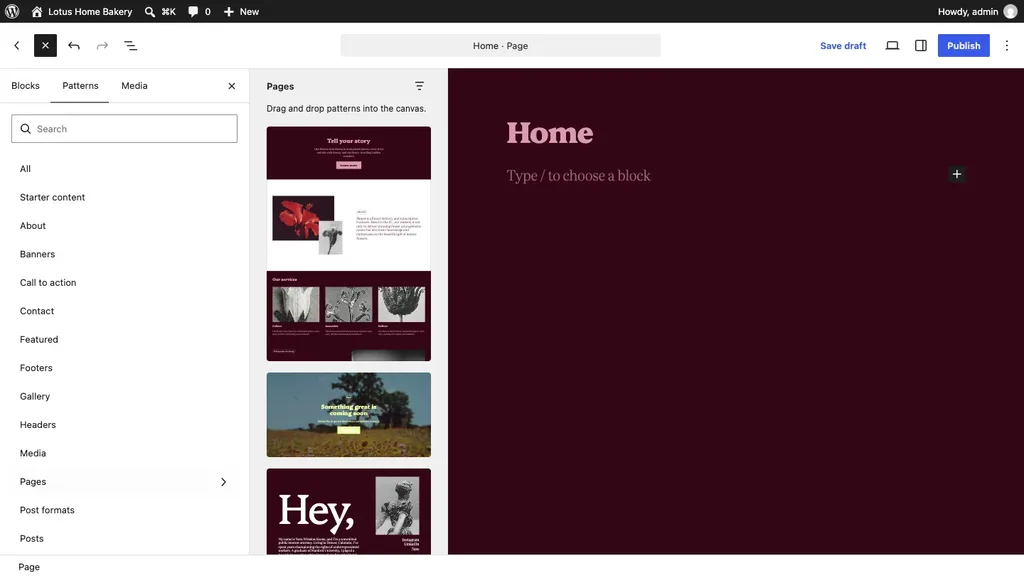
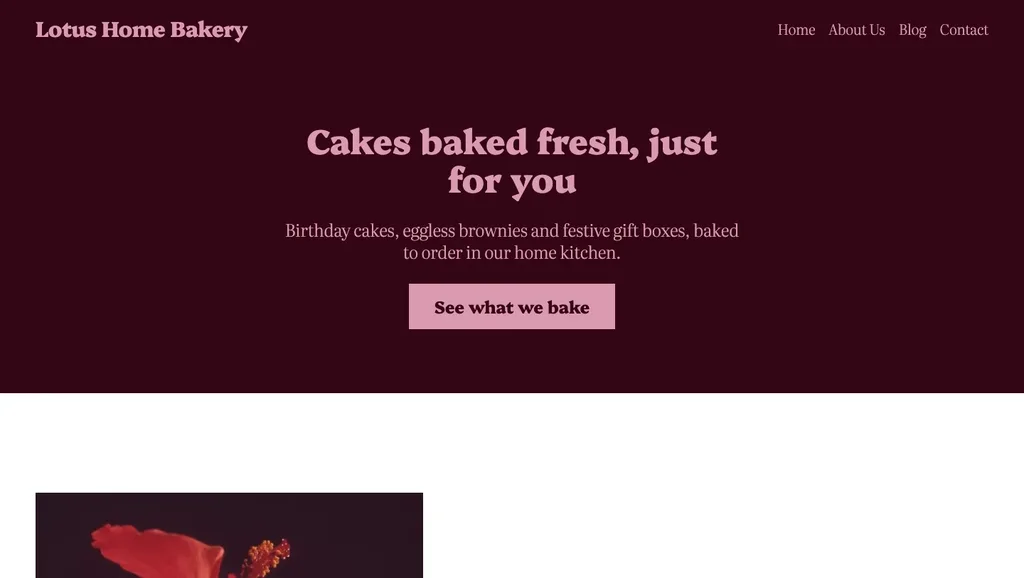
One click, and the whole layout dropped in: a big banner, an about section and a three-column services block. Then I clicked on each heading and paragraph and simply typed over it. "Tell your story" became "Cakes baked fresh, just for you", and the three services turned into Order, Bake and Pick up. I also deleted the parts I didn't need, like the pricing plans and a newsletter sign-up.
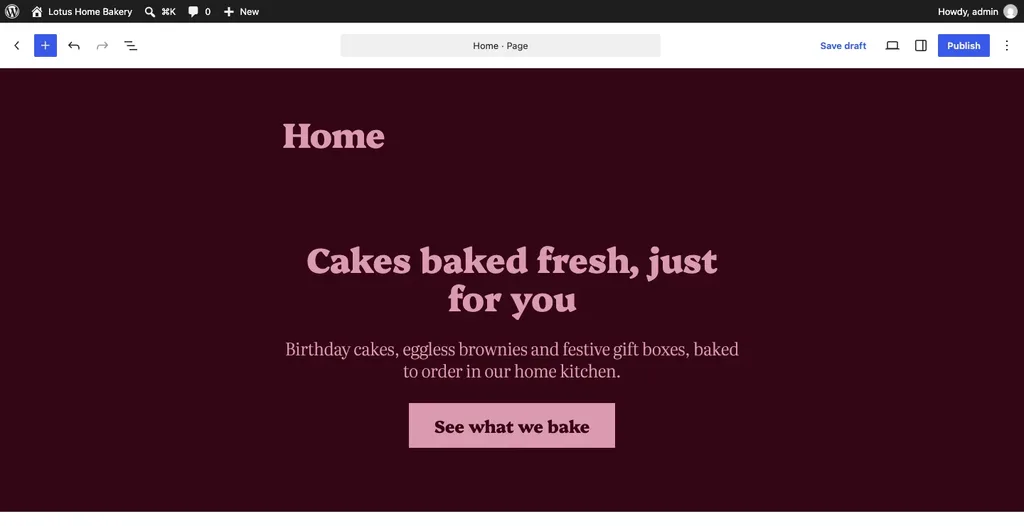
The pattern comes with sample flower photos, which I left in for this demo, but on your site, click each image and choose Replace to use your own pictures. One more small thing: in the page settings on the right, I set the Template to "Page No Title", so the word "Home" doesn't sit above the banner.
The Blog page
Create one more page called Blog and publish it with nothing on it. That's fine, because once you connect it in Step 11, WordPress fills it with your posts on its own.
Step 10: Add a Contact Form
Plugins are nothing but add-ons that give WordPress new features, and almost everybody's first one is a contact form. Under Plugins, click Add Plugin and search for "contact form". When I searched, Contact Form 7 came first with 10+ million active installs, and WPForms, Forminator and Fluent Forms were close by.
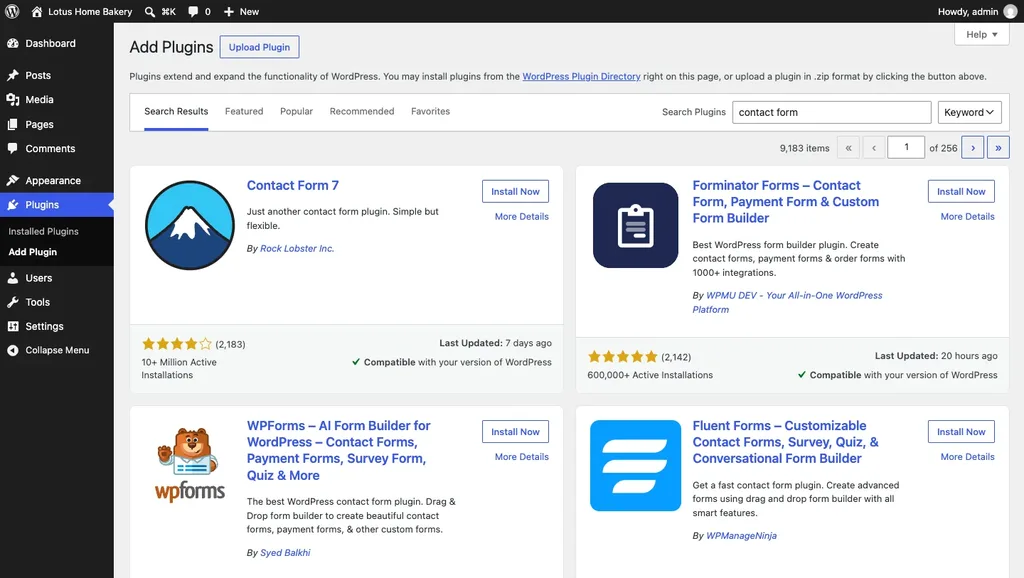
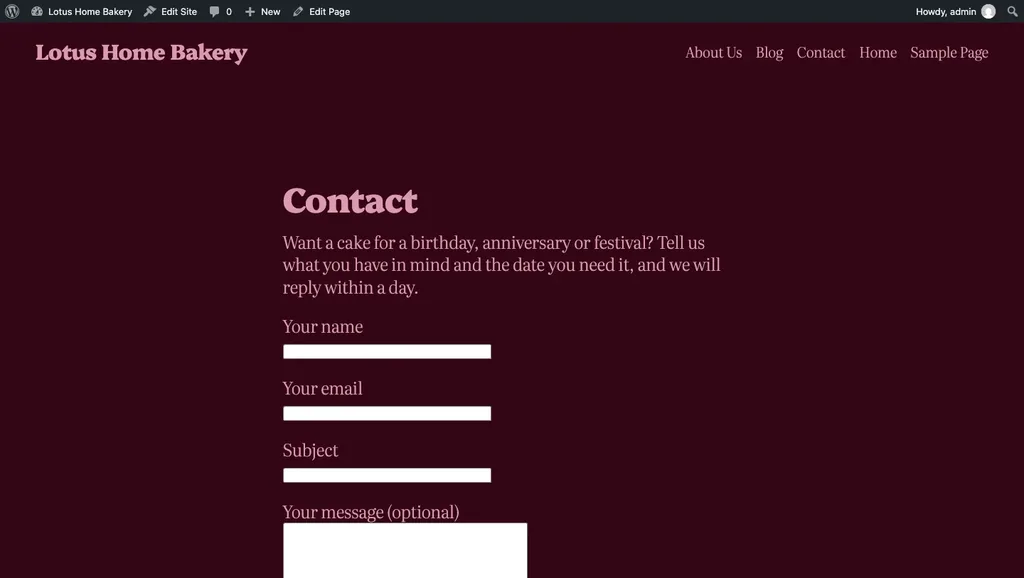
I clicked Install Now on Contact Form 7, then Activate. Right after activation, it had already made a form called "Contact form 1", with name, email, subject and message fields. So I made a Contact page, wrote one line asking people to send their cake orders, and dropped the form in using a Shortcode block. Here's exactly how it looks to visitors:
Now, one important thing before launch: send yourself a test message. If it doesn't land in your inbox, don't panic; usually the host just needs an SMTP plugin to deliver emails reliably. Trust me, a form that quietly loses orders is worse than having no form.
Step 11: Choose What Your Homepage Shows
Out of the box, your homepage automatically shows your latest blog posts. For a business, you'll usually want your Home page there instead. Under Settings, then Reading, I chose "A static page", set Homepage to Home and Posts page to Blog, and saved.
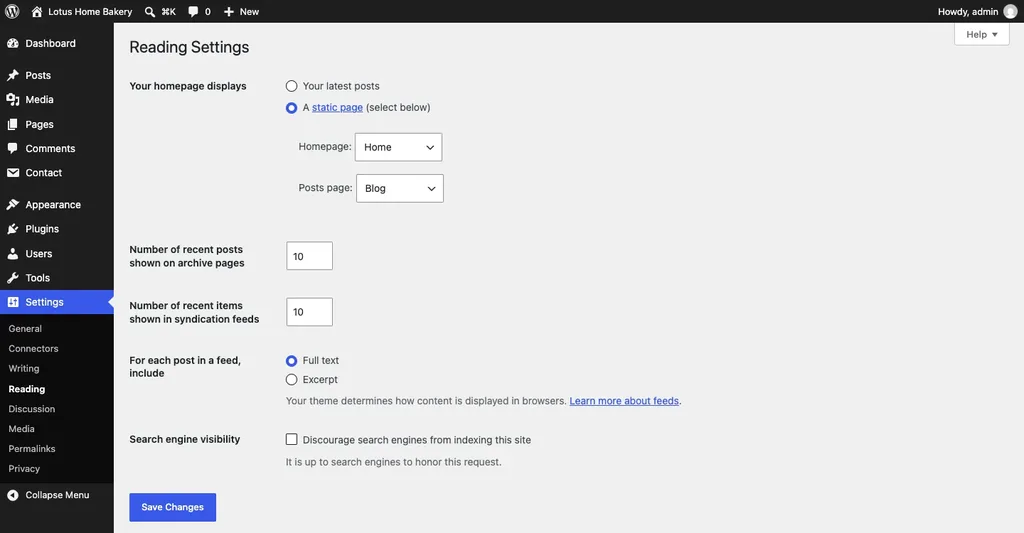
While you're here, look at "Search engine visibility" near the bottom. Make sure that box is unticked, or you're politely asking Google to stay away. It's an easy box to tick accidentally.
Step 12: Build Your Menu
Your menu decides what visitors see at the top of every single page. Before I made one, Twenty Twenty-Five was listing every page on its own, including WordPress's "Sample Page". So first I moved Sample Page to the Trash under Pages.
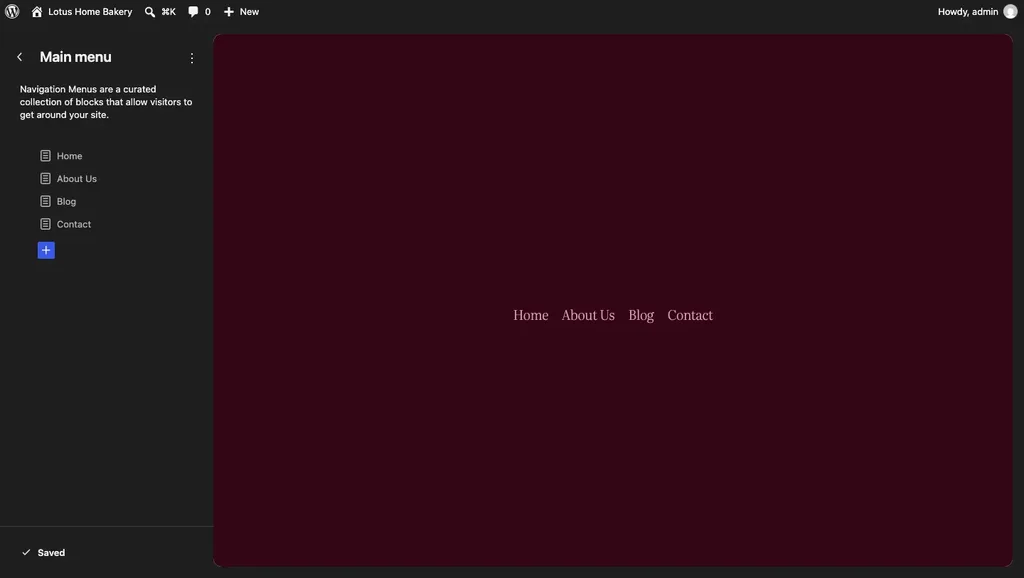
After that, in the Site Editor, I went into Navigation and made a menu named "Main menu". Four links only: Home, About Us, Blog and Contact. Need another link? The blue + takes care of that, and dragging the items up or down changes their order.
Step 13: Your First Blog Post
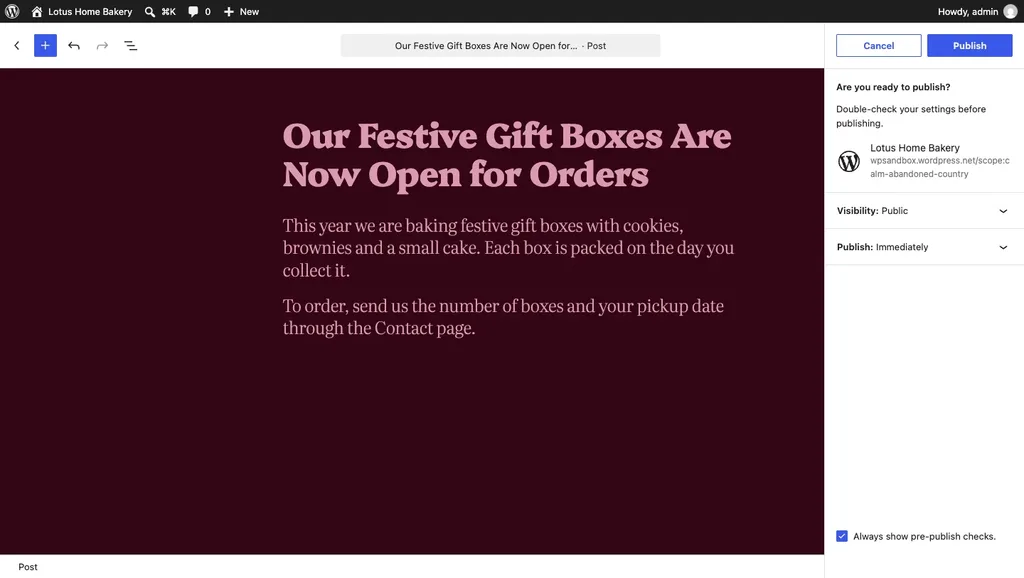
A blog gives Google fresh reasons to visit and gives customers good reasons to keep coming back. Go to Posts and click Add Post. You'll recognise the editor straight away, since it's the same one you used for pages. My first post was a short one, announcing the bakery's festive gift boxes, and then I hit Publish.
WordPress then asks "Are you ready to publish?" and shows the visibility setting and the scheduled publishing time. You can also schedule the post for a later date right here. Click Publish once more, and it's officially live. Also delete the default "Hello world!" post while you're at it.
Step 14: Check Your Site on Desktop and Mobile
And now comes the best moment, so open your site in a new tab, the way a visitor would. Here's the finished bakery homepage on a laptop screen:
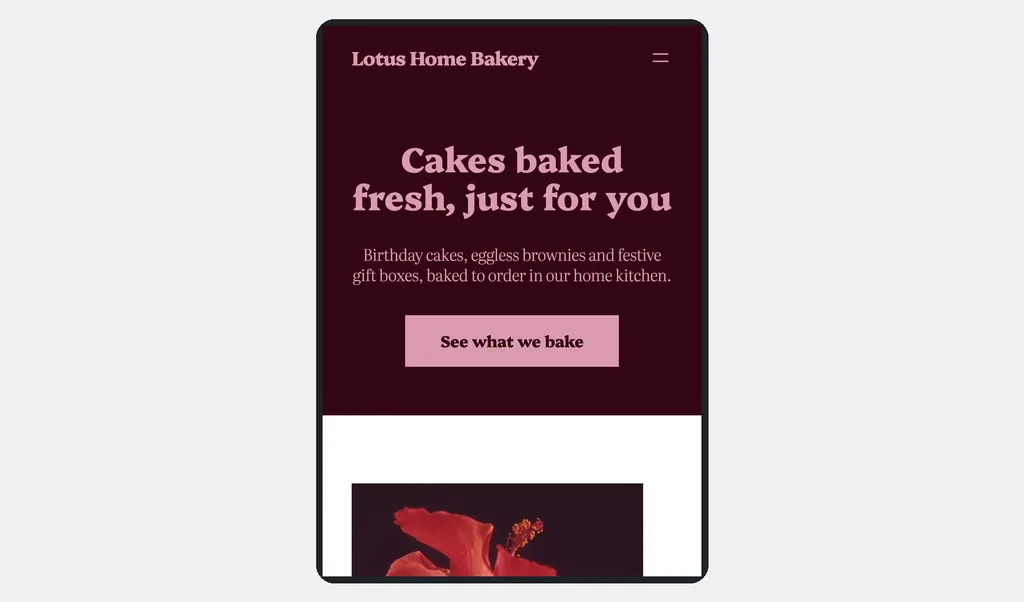
Here's the same page on a phone. See how the menu turned into a ☰ icon and everything stacked up neatly? I didn't touch a single setting for that; Twenty Twenty-Five does it on its own.
Now click every link and fill in the form yourself. Read each page on your phone at least once. Plenty of your visitors will be on mobile devices, so don't skip this.
Before You Launch: My Quick Checklist
- an SEO plugin, such as Yoast SEO, for titles, descriptions and a sitemap;
- a backup plugin, even if your host keeps backups (here are the best backup plugins);
- a security plugin (my picks for the best security plugins);
- a Site Icon, the tiny logo in browser tabs, under Settings, then General;
- your Privacy Policy page, filled in and linked from the footer;
- and last, Google Search Console: add your site there and submit the sitemap.
One request from my side: please don't go plugin crazy. Every extra plugin is one more thing you'll have to keep updated.
FAQs: How to Build a WordPress Website
How long does it take to build a WordPress website?
For a simple site like my bakery one? An evening, maybe a weekend, and it really depends on whether your text and photos are ready. The clicking part is quick. Writing good content is what takes time.
Do I need coding skills?
Not at all. Every single step in this guide was nothing but clicking and typing. Knowing a little HTML or CSS comes in handy for small tweaks later, I won't lie, but plenty of site owners never touch it.
How much does it cost to build a WordPress website?
The WordPress software itself is completely free, so your basic costs are hosting and a domain, which on the Hostinger example above comes to $119.52 for four years, with the domain free in year one. Free themes and free plugins, like the ones I used here, cost nothing. Premium themes, paid plugins or a designer cost extra, but you don't need any of that on day one. Planning a store? Then read how much WooCommerce costs before you start.
Can I build a WordPress website for free?
You can practise for free on WordPress Playground, the same tool I used for these screenshots, but that isn't a public website. For a real site, you need hosting and a domain. WordPress.com does have a free plan, with a wordpress.com address and its ads on your pages.
What about page builders like Elementor?
I wouldn't start with one. Twenty Twenty-Five and its patterns already give a beginner plenty to play with. Later on, if you're craving more design control, have a look at my comparison of the best page builder plugins.
Can my WordPress site become an online store later?
Of course it can. Install the free WooCommerce plugin and follow our WooCommerce store setup guide, step by step. Several of my own stores run on exactly that setup.
Summing Up
And there you have it, that's how to build a WordPress website from scratch. Name board up, space rented, shelves fitted, walls painted, stock in, phone number on the counter, shutter open. Go step by step, don't overthink the design, and who knows, you might be showing off your new website to friends by Sunday evening.
That's all for now. Which step are you stuck on? Do let us know in the comment box below.