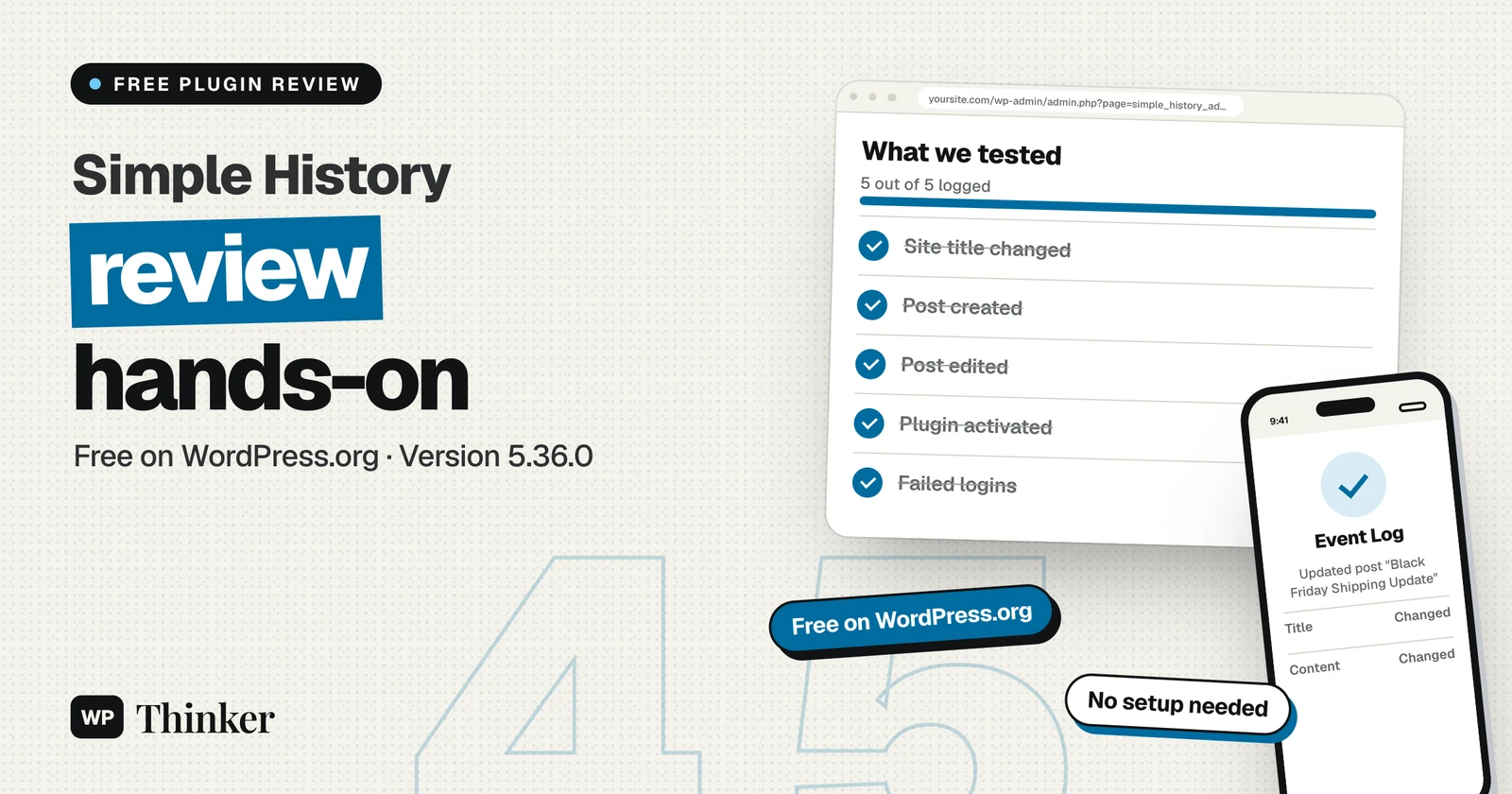
When more than one person works on a WordPress site, small changes go missing. A setting gets switched, a post gets edited, a plugin gets turned on, and nobody remembers who did it. In this Simple History review, we installed the free plugin on a fresh WordPress 7.1.5 test site, made real changes, and checked what it recorded. Our short answer: it logged every action we tried, with clear before-and-after details, and it needs no setup at all.
If you are looking for a free way to see who changed what on your site, this article will help you. Let us have a look at what we tested and what we found.
Related Articles:
What Is Simple History?
Simple History is an activity log, also called an audit log, for WordPress. It records events such as logins, failed logins, post edits, plugin changes and settings updates. Each event shows the user, the time and, where it makes sense, the old and new values.
The plugin is made by Pär Thernström and was first added to the WordPress.org directory in July 2010. Here are the numbers we pulled from the official plugin page and the WordPress.org plugin API on November 20, 2026:
| Detail | Value |
|---|---|
| Version tested | 5.36.0 |
| Last updated | November 18, 2026 |
| Active installs | 300,000+ |
| Rating | 4.9 out of 5 (494 ratings) |
| Requires | WordPress 6.3 and PHP 7.4 |
| Tested up to | WordPress 7.1.5 |
| Price | Free, with an optional Premium add-on |
The changelog says version 5.36.0 also contains security fixes. So if you already run the plugin, update it first.
Simple History Review: How We Tested It
We ran the test in WordPress Playground, the free in-browser WordPress from WordPress.org. Our test site ran WordPress 7.1.5 on PHP 8.3. We installed Simple History 5.36.0 from the directory and did not touch any of its settings.
Next, we did five things that happen on real sites every week:
- First, we changed the site title under Settings → General and clicked Save Changes.
- Next, we published a post called "Black Friday Shipping Notice".
- Then we edited that post, changing its title and the shipping dates in the text.
- After that, we activated the Hello Dolly plugin from the Plugins screen.
- Finally, we tried two bad logins: one with a wrong password for the admin user and one with a username that does not exist.
Then we opened Simple History → Event Log. Every action was already there. We did the whole run several times, and each round took under two minutes from a blank site to a full log.
Post Edits With Before and After
This is the feature that impressed us most. The log does not just say "post updated". It shows exactly what changed, with the old text in red and the new text in green.
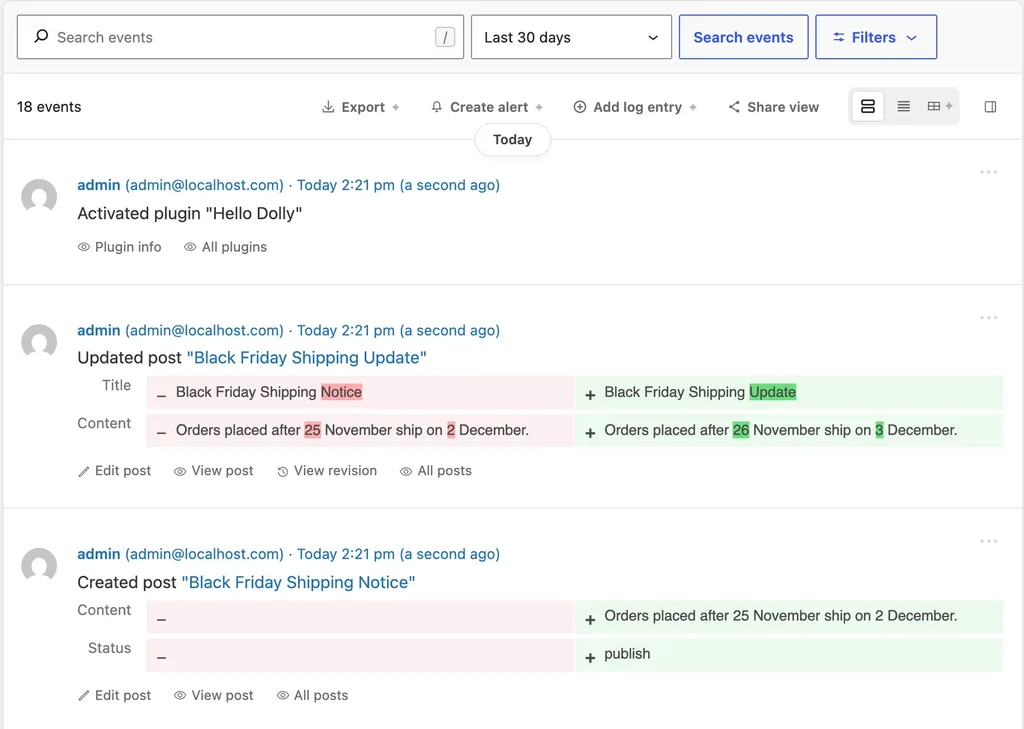
When we changed "25 November" to "26 November", the log marked just those two digits. Each post event also has quick links to edit the post, view it, or open the matching revision. For a shop owner, this makes it easy to answer "who changed the shipping dates?" in a few seconds.
Failed Logins and Privacy
Both bad logins showed up as warnings from an "Anonymous web user". The plugin also told us the reason for each one: "incorrect password entered" for the real admin account and "username does not exist" for the fake one.
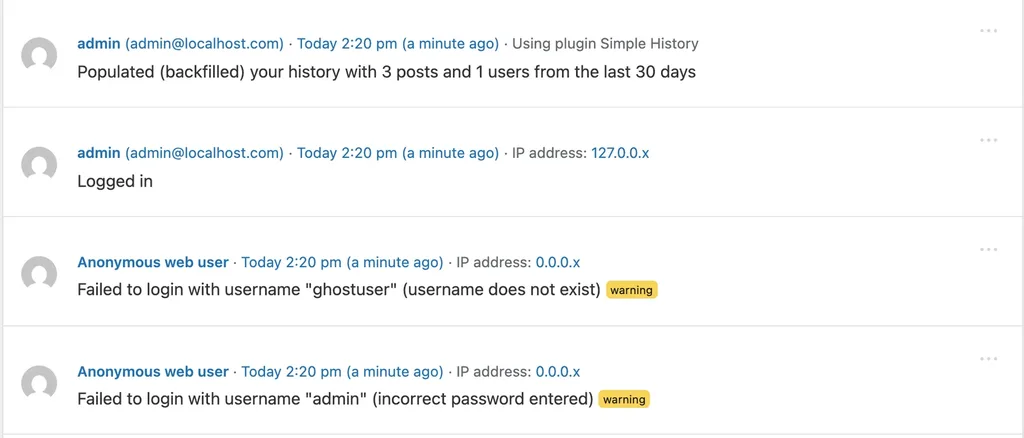
Look closely at the IP addresses. They end in ".x" because Simple History hides the last part of every IP before saving it. The plugin page says this is the default, and that the plugin sets no cookies and loads no external fonts. That is a sensible choice if you have visitors from the EU. If you need full IP addresses for a security review, the settings page lists that as a Premium feature.
One note on our method: Playground logs you in on its own, so a normal browser login test does not work there. We triggered the two failed logins with WordPress's own wp_signon() function in a setup step instead. On a normal site, failed attempts through the login form are logged the same way.
History Insights and the Dashboard
The History Insights page gives a summary of the last 30 days. On our test site it counted 18 events from one user, split into user, content, plugin, media and notes actions, with a simple bar chart by date.
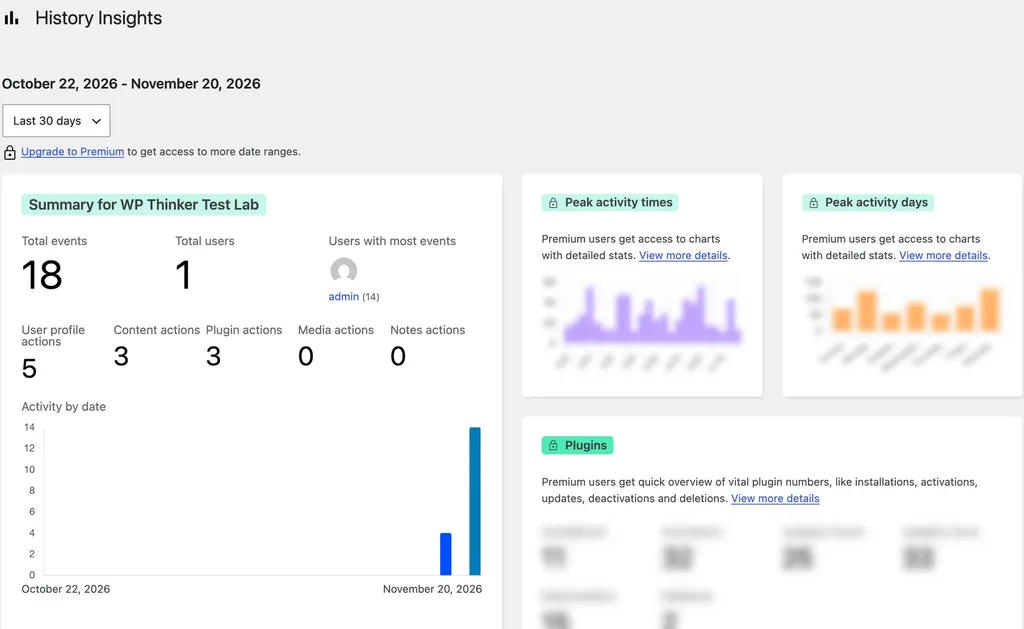
A quick warning here. The blurred cards on the right show numbers such as plugin installs and activations. Those are sample previews for the Premium version, not your site's data. Our test site had only 18 events, so do not read anything into them.
Simple History also adds a widget to the WordPress dashboard and a "History" link in the admin bar. Both can be turned off under Simple History → Settings.
Settings Worth Knowing
Thankfully, there is nothing you must set up. Still, these options on the free settings page are worth a look:
- History menu position: top or bottom of the admin menu, or inside Dashboard or Tools.
- Items per page: separate values for the log page and the dashboard widget.
- Clear log: events older than 30 days are removed by default, and you can clear the whole log by hand.
- Detective mode: stores extra request data with each event. It is useful for debugging, but turn it off again when you are done.
- RSS feed: a private feed of your log for any feed reader. Share it only with people you trust.
Developers also get WP-CLI commands, a REST API and the simple_history_log action for adding custom events, according to the official Simple History site.
Common Mistakes and Gotchas
We ran into three things during the test that are good to know before you install it:
- Extra settings events. We only changed the site title, yet the log also showed updates to "Anyone can register", "Week Starts On" and "Site Icon", with no visible change. Our guess is that saving the form re-saves those fields. It is harmless, but it adds noise.
- 30 days only. The free version keeps 30 days of history. If you need older records for a client or an audit, export them in time or look at Premium.
- Upsell boxes. The log page shows boxes for a weekly email digest, Premium and a paid Debug & Monitor add-on. They do not block anything, but the screen feels busy.
Also remember that a log is not a firewall. Simple History tells you what happened, but it does not stop bad logins. Pair it with the tools in our security plugins guide.
Who Should Use Simple History?
- Solo bloggers: it is nice to have, mainly for spotting failed logins. Install it if you want peace of mind.
- Teams and stores: this is where it shines. Seeing who changed a price page or a post is worth a lot.
- Agencies and freelancers: the log shows clients exactly what work was done, and the RSS feed helps you watch many sites.
- After a hack: it only records events from the moment you install it. Install it now, before you need it. If your site is already hit, start with our hacked site guide.
Simple History FAQs
Is Simple History free?
Yes. The plugin is free on WordPress.org. Premium is an optional add-on for longer history, filtered exports and other extras.
Does Simple History slow down WordPress?
We did not run a speed test, so we can't give you numbers. On our test site the admin screens loaded normally, and the 30-day cleanup keeps the log table from growing forever.
Can Simple History see changes made before it was installed?
Partly. On activation it backfilled our existing posts, pages and users from the last 30 days, but it cannot know who edited what before it was running.
Does it work with WooCommerce?
The plugin page says it logs posts, pages and custom post types, and WooCommerce products are a custom post type. We did not test a store in this review, so check the plugin page for its current list of supported plugins.
Final Words
Simple History does one job and does it very well. It needs no setup, the log is easy to read, and the before-and-after view for posts makes edits very easy to follow. The 30-day limit and the upsell boxes are the only real downsides. Our Simple History review score is 4.5 out of 5, and we suggest it for any site with more than one user. Let us know in the comments which activity log you use.
Sources
All sources checked on November 20, 2026:
- Simple History on WordPress.org
- WordPress.org plugin API: Simple History
- Simple History changelog
- Simple History official site
- Simple History source code on GitHub
We will retest and update this Simple History review when the next major version of the plugin is released.
Our verdict
Simple History
A free, no-setup activity log that recorded every action in our test, including clear before-and-after views of post edits and failed logins with masked IP addresses. The free version keeps 30 days of history and the log page carries several upsell boxes.
- Ease of use5
- Logging detail4.5
- Privacy defaults4.5
- Free version limits4
- Interface4
Pros
- Works right after activation, no setup
- Clear before-and-after view of post edits
- Logs failed logins with the reason
- IP addresses masked by default
- RSS feed, WP-CLI and REST API included
Cons
- Free version keeps only 30 days of history
- Upsell boxes make the log page busy
- Saving a settings page can log unchanged fields